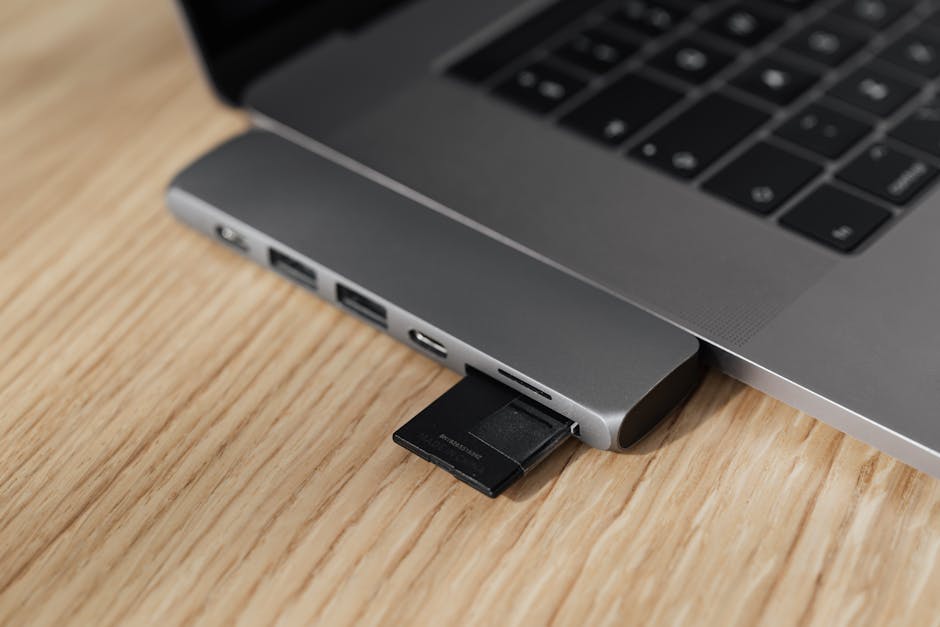
Category: Tech Bench

  • What Is Passkeys and How Does It Work?

    At a glance

    • What it is: A passkey is a secret stored on your devices that signs you in without a typed password.
    • What’s new: Cryptographic key pairs replace a password you remember and type.
    • Who it is for: People signing in to accounts that offer passkeys and want phishing-resistant sign-in.

    Can a passkey get you into an account without another password to remember? Yes: instead of typing a remembered secret, you unlock a passkey stored with a provider the same way you unlock your device, such as a PIN, pattern, biometrics, or a security key. That is the short answer to “what is passkeys and how does it work.” The follow-up that matters is where that passkey lives, because a synced passkey and a device-bound passkey are not the same setup (and the prompt will not always say which one you are getting).

    The FIDO Alliance’s passkey documentation describes the underlying method as public-private key cryptography. A passkey replaces a password for sign-in; you unlock its use rather than recall and type it. To be plain: this article is based on specs and official documentation, not on testing sign-ins on particular phones, browsers, or accounts.

    Spec Teardown

    Person unlocking a phone to sign in
    Photo by I’m Zion on Pexels

    There is no battery capacity or processor speed to compare here. The useful “specs” are the credential type, storage arrangement, provider, and unlock method.

    Spec Official documentation says Figures / boundaries
    Sign-in credential Passkeys replace typed passwords with public-private cryptographic key pairs. 2 parts: public key and private key
    Storage choices A passkey may sync between your devices through a cloud service or never leave a single device, including a FIDO security key. 2 categories: synced and device-bound
    Provider choices A provider may be built into a browser or operating system, or supplied by a third-party app or browser extension. 2 provider types described
    Unlock methods FIDO lists biometrics, a security key, PIN, and pattern among ways users unlock passkeys. 4 listed examples
    Threats addressed FIDO names phishing, credential stuffing, and password database breaches as threats relying parties face with passwords. 3 named threats
    Highest assurance Device-bound passkeys in modern hardware security keys offer the highest security assurance, with evidence of how and where the passkey is stored. 1 storage type singled out

    Those figures are categories from the documentation, not speed or compatibility claims. Note that “stored on your device” does not always mean “stuck on this device.” FIDO calls credentials that sync between a user’s devices through a cloud service synced passkeys. Credentials that never leave a single device, including those on FIDO security keys or UAF apps, are device-bound passkeys.

    How a passkey sign-in works

    Start with an account that offers passkeys. Its sign-in flow must support them; owning a capable phone or security key does not turn every password field into a passkey prompt. When you create a passkey, a provider stores the credential. Later, you approve its use by unlocking as prompted. FIDO describes the result as phishing-resistant sign-in built on a cryptographic key pair, rather than a secret you type into a site (which is exactly what a fake login page is built to collect).

    Passkey sign-in flowFlow diagram: Choose an account offering passkeys → Create a passkey with a provider → Unlock your device to sign in. Note: Storage may be synced or device-bound.Choose an account offering passkeysCreate a passkey with a providerUnlock your device to sign inStorage may be synced or device-bound.
    Diagram: Passkey sign-in flow. Drawn from the official sources linked in this article; it adds no new data.

    That last distinction is the point. A password can be remembered, entered, reused, and stolen as a typed secret. A passkey changes what you do at the sign-in screen: you approve access with an unlock method tied to the stored credential. “Passwordless” describes that account sign-in, not a promise that you will never enter a PIN anywhere. (The PIN that unlocks your device is not the password you are replacing.)

    FIDO also separates the credential from its provider. A built-in credential manager, such as iCloud Keychain or Google Password Manager, can store and sync passkeys. A third-party provider, such as 1Password or Dashlane, can do so through an app or browser extension. That choice affects where you expect to find your passkeys later. It does not change the basic question to ask before setup: will this credential sync, or will it stay bound to its device?

    What the specs confirm, and what they leave open

    Hardware security key beside a computer
    Photo by George Becker on Pexels

    The documentation explains the mechanism well. It cannot tell you what every account will offer, which provider your sign-in screen will select, or what recovery choices you will get. Marketing copy mashes those together into “just tap and you’re in.”

    What the specs confirm What the specs don’t tell you
    FIDO describes passkeys as phishing-resistant credentials using public-private key pairs. Whether a specific account currently offers a passkey sign-in option.
    Passkeys may be synced through a cloud service or remain device-bound. Which storage choice a particular account and provider will offer you.
    Built-in providers (iCloud Keychain, Google Password Manager) and third-party providers (1Password, Dashlane) exist. Which provider a particular sign-in flow will use by default.
    A security key can store a device-bound passkey, and FIDO calls that the highest security assurance. Whether your chosen account supports the security-key setup you want.

    These are not small-print gotchas. If you move between your own devices, find out where a synced passkey would be stored. If you want a credential that stays on hardware, check for device-bound passkey support before assuming a security key will work with a particular account. FIDO describes device-bound passkeys in modern hardware security keys as offering the highest security assurance; it does not turn that statement into a compatibility list, and neither will I.

    Passkeys vs. a password manager

    This comparison gets muddled because some password managers are also passkey providers. A password manager helps you manage passwords; CISA recommends strong passwords and a password manager among easy ways to keep someone from logging into an account and stealing data or money. A passkey, by contrast, is the credential used for a passwordless sign-in. FIDO says built-in credential managers and third-party products can store and sync those credentials. So “passkey or password manager?” is often the wrong either-or question.

    Accounts still using passwords call for password care, and CISA says multifactor authentication adds a further identity check, such as a code texted to a phone or one generated by an authenticator app. CISA’s point is blunt: even if someone steals your password, they still cannot meet the second step. Neither document says every account drops passwords or every provider handles every credential.

    How to approach setup without guessing

    Open the security or sign-in settings for an account you already use. CISA notes the menu could be labeled Security, Password and Security, or similar. Look for a passkey option. If it offers one, read the provider choice shown before creating the credential. Then decide whether you want a synced passkey with a built-in or third-party provider, or a device-bound passkey where that option is supported. Follow the account’s prompts and pay attention to the unlock method presented. Menu names and recovery paths depend on the account and provider; the source documentation does not specify them.

    Before calling it done, check how you would sign in on the devices you normally use. The clean decision is: confirm the account offers passkeys, identify the provider, understand where the credential resides, then follow the offered sign-in flow. (Yes, that is more homework than “tap to continue.” It is also the part that keeps you from locking yourself out.)

    Keep / Skip / Wait

    Keep your existing account protections while you check each account’s passkey and provider options. Skip the idea that a passkey must replace your password manager; a manager may also store passkeys. Wait before relying on a security key for an account whose device-bound support you have not confirmed.

    Verdict: Keep — use a passkey where the account offers one, but check its storage arrangement first.

    FAQ

    What is a passkey on iPhone?

    It is the same kind of passwordless credential FIDO describes for other devices. FIDO names iCloud Keychain as an example of a built-in credential manager that can store and sync passkeys. The documentation does not specify iPhone menus, so use the options the account and provider show you.

    How do I use passkeys with Google?

    Distinguish the account from the provider. FIDO names Google Password Manager as a built-in provider that can store and sync passkeys; that does not establish the setup steps for every Google sign-in. Look for the passkey option in the account’s sign-in settings, check the provider offered, and follow its prompts.

    Are passkeys and security keys the same thing?

    No. A passkey is a credential; a hardware security key is a place a device-bound passkey can live and a way to unlock it. FIDO says device-bound passkeys never leave their single device, including when held on FIDO security keys, and calls that the highest security assurance.

    Do passkeys replace multifactor authentication?

    FIDO describes passkeys as phishing-resistant passwordless sign-ins. CISA describes multifactor authentication as an added identity check and recommends turning it on. What an individual account requires is a question for that account’s settings.

    Related on Longview Desk


    This article was written by the site’s author with the assistance of AI tools, and reviewed before publication.
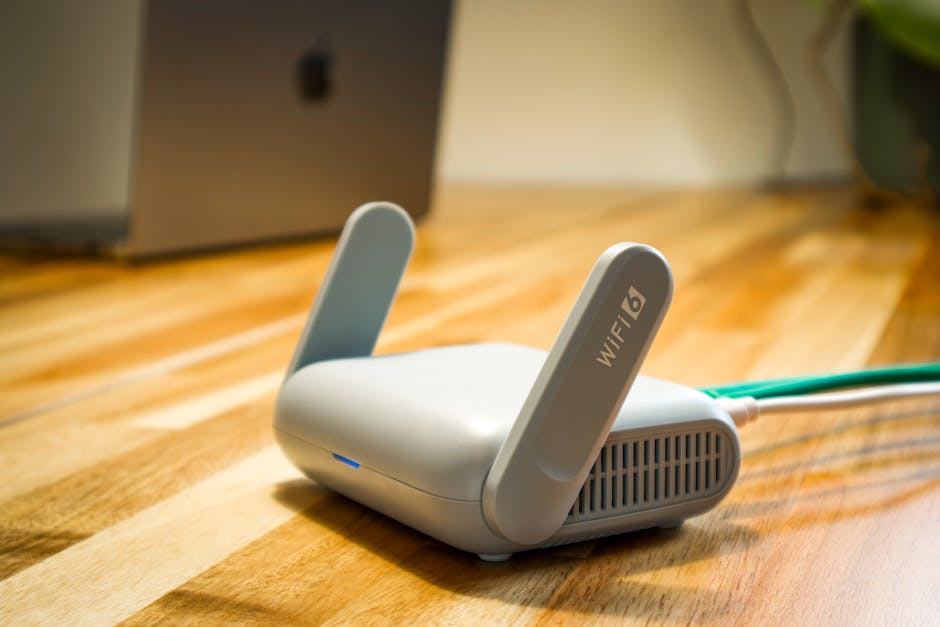
  • WiFi 7 Router ASUS: What Official Specs Can Tell You

    At a glance

    • What it is: An ASUS Wi-Fi 7 router search measured against the Wi-Fi Alliance’s official Wi-Fi 7 documentation, which names no ASUS model.
    • What’s new: The Wi-Fi 7 documentation describes access points coordinating instead of competing for spectrum, plus OFDMA channel sharing for lower latency.
    • Who it is for: Shoppers trying to tell a real ASUS spec sheet from general Wi-Fi 7 marketing language.

    Does an ASUS Wi-Fi 7 router give you something useful, or just another badge on the box? Short answer: the Wi-Fi Alliance’s Wi-Fi 7 documentation explains the technology clearly, but it never names an ASUS model, so it cannot verify one. If you typed “wifi 7 router asus” into a search bar, that distinction is the whole game. A description of a technology is not a spec sheet for the router you would actually carry home.

    Everything here is based on specs and documentation, not on testing the hardware. No measured speeds, no coverage maps, no U.S. prices, no retailer listings, and no model-specific ASUS documents are part of the official material reviewed. That narrows the question (and, honestly, improves it): what can the official Wi-Fi 7 documentation tell you, and what do you still have to check before you spend a dollar?

    Spec Teardown

    Wireless router sitting on a home office desk
    Photo by Pascal 📷 on Pexels

    Here is the full numeric footing in the Wi-Fi Alliance material. Several of these figures are industry context, not router specifications. Treating them as interchangeable is exactly the marketing fog this column exists to clear.

    Item in the official documentation Figures or numbers stated What that figure actually establishes
    Wi-Fi generation documented Wi-Fi 7 The page covers the generation; it names no ASUS model.
    Chipset shipment context 6 GHz; 2026 The documentation refers to 6 GHz chipset shipments in 2026, which is industry context, not availability of a particular U.S. router.
    Generations in that shipment line Wi-Fi 6E; tri-band Wi-Fi 7 Categories of chipsets, not a feature list for an ASUS product.
    WiGig frequency band 60 GHz Assigned to WiGig in the documentation; not stated for any ASUS Wi-Fi 7 router.
    WiGig introduction 2016 Dates WiGig; it is not an ASUS release date.
    WiGig use cases named None (descriptive only) Virtual reality, multimedia streaming, gaming, wireless docking, and enterprise applications, per the documentation.

    That last point matters more than it looks. The Wi-Fi Alliance page mentions WiGig, its uncongested 60 GHz band, and a 2016 introduction. None of that turns 60 GHz into a confirmed band on whatever ASUS router shows up in your search results. Likewise, the reference to 6 GHz chipset shipments in 2026 covering Wi-Fi 6E and tri-band Wi-Fi 7 is market context, not proof that a specific ASUS model has a particular radio layout. Numbers look authoritative in a product comparison. They still need the right product attached to them.

    What the Wi-Fi 7 terms actually explain

    The documentation says smarter coordination lets access points collaborate instead of competing for spectrum, which provides higher capacity in dense deployments. It also says orthogonal frequency division multiple access, or OFDMA, effectively shares channels to increase network efficiency and lower latency. Both are descriptions of how the wireless technology operates. Neither tells you how an ASUS router will behave in your house, what a given ASUS listing includes, or whether your laptop and phone can use a particular feature at all.

    That is the practical answer to “what wi fi router” in this context: a router listing needs its own specifications. The Wi-Fi Alliance material hands you vocabulary for reading those specifications; it cannot fill in blanks on a model page. Do not promote a general explanation of coordinated access points into a promise about coverage in your back bedroom. Do not turn “lower latency” in a technology description into a gaming result for hardware nobody has measured here. (Marketing copy does this constantly. You do not have to.)

    If you are deciding what wifi router to buy, find the exact ASUS model the seller names and read that model’s official specifications before comparing anything. Then separate the listing’s claims from the broader Alliance language. A U.S. retailer page, your carrier’s gateway requirements, or an FCC label on the unit may matter to your purchase, but the official material reviewed here documents none of those for an ASUS router. There is no honest shortcut around the missing details.

    The reading order is simple: identify the model, inspect its official specifications, match the claims against the Alliance description, then write down what is still unanswered. That keeps a broad “Wi-Fi 7” sticker from doing the job of an actual product sheet.

    Reading an ASUS Wi-Fi 7 listingFlow diagram: Find the exact ASUS model name → Open that model’s official spec sheet → Match each claim to Wi-Fi Alliance language → List what still isn’t answered. Note: A description of the technology does not verify a particular router.Find the exact ASUS model nameOpen that model’s official spec sheetMatch each claim to Wi-Fi AlliancelanguageList what still isn’t answeredA description of the technology does notverify a particular router.
    Diagram: Reading an ASUS Wi-Fi 7 listing. Drawn from the official sources linked in this article; it adds no new data.

    Confirmed vs. unknown: the caveats in one table

    Ethernet cables connected to the back of a home router
    Photo by Brett Sayles on Pexels

    Scattered caveats make for bad shopping decisions. Here they are in one place, held to what the official documentation actually says.

    What the specs confirm What the specs don’t tell you
    Wi-Fi 7 documentation describes access points collaborating rather than competing for spectrum, for higher capacity in dense deployments. Whether a named ASUS router supports or uses that behavior in your setup.
    The documentation describes OFDMA as sharing channels to increase efficiency and lower latency. Any measured latency or throughput for an ASUS router, your devices, or a U.S. home.
    WiGig uses the 60 GHz band and was introduced in 2016, with uses such as VR, streaming, gaming, and wireless docking. Whether any ASUS Wi-Fi 7 router in your search supports WiGig.
    The documentation notes 6 GHz chipset shipments in 2026 involving Wi-Fi 6E and tri-band Wi-Fi 7. The band configuration, availability, or USD price of a particular ASUS model.

    This table is not a complaint about Wi-Fi 7. It is a fence around the evidence. A technology page can explain why coordination or channel sharing matters without serving as a review of a finished router. For this search, model identification is the missing link between interesting wireless terminology and a buying decision.

    How to read Wi-Fi 7 router reviews

    Start by checking which device a review actually covers. “ASUS Wi-Fi 7 router” is too broad to transfer a conclusion from one product to another, and the official documentation reviewed here names no product to match against a review. Next, ask whether each statement is a documented feature, a reported measurement, or an inference from a Wi-Fi term. Those are three different kinds of evidence (even when they sit in the same breathless paragraph).

    Coverage and latency claims deserve extra suspicion. The Alliance documentation explains an efficiency and latency benefit for OFDMA and a capacity benefit for coordinated access points in dense deployments. It supplies no measurements for a specific router or floor plan. A review might present its own measurements, but nothing here validates or repeats them, so read any review on its own stated conditions rather than treating the Wi-Fi 7 label as its test result.

    Also watch for the quiet switch from “tri-band Wi-Fi 7” in the chipset-shipment line to “this ASUS router is tri-band.” The documentation does not support that jump. Same with WiGig: the 60 GHz mention is about WiGig, not evidence of a feature in a router you found on a retail page. A good spec comparison keeps the subject of every claim in view, and a good reviewer tells you when the subject changes.

    Keep / Skip / Wait

    The official Wi-Fi 7 material is useful for understanding the technology and useless for confirming a specific ASUS box. Until the exact model and its spec sheet are on the table, there is nothing to judge.

    Verdict: Wait — the official documentation does not identify an ASUS model or supply the model-level specs a buying call requires.

    FAQ

    What is an ASUS Wi-Fi 7 router, based on the official documentation?

    In this search it is an ASUS router associated with Wi-Fi 7, not a uniquely identified product. The Wi-Fi Alliance documentation discusses wireless concepts, including access-point coordination and OFDMA, but supplies no ASUS model name. To assess a listing, first pin down its exact model and official specifications. Otherwise a general account of the technology gets mistaken for that device’s feature list.

    What is wifi router ip address, and does this documentation give it?

    No router IP address appears in the Wi-Fi Alliance material. It does not provide an ASUS setup address, an address printed on a device, or instructions for finding one on your network. Use the documentation for your exact router model for setup details rather than guessing from a technology page. The address question is about reaching a device on your network; the Alliance page is about wireless technologies, so it cannot settle that question.

    What is wifi router extender compared with the access points mentioned here?

    The documentation discusses access points collaborating in dense deployments; it does not define a router extender or describe an ASUS extender setup. Its access-point statement cannot confirm how a specific extender would connect, what it would support, or how it would change your coverage. If an extender is part of your plan, identify the actual devices and read their own documentation. Similar-sounding network terms are not interchangeable specifications.

    Can the Wi-Fi Alliance documentation tell me which ASUS router to buy?

    No. It provides useful language for questioning product claims, but not a model comparison, a USD price, a retailer listing, or a performance result. Use the exact ASUS model’s official documentation to establish what the hardware includes, and keep the unanswered questions open until it does. The takeaway is modest but solid: Wi-Fi 7 terminology helps you read a spec sheet. It cannot replace one.

    Related on Longview Desk


    This article was written by the site’s author with the assistance of AI tools, and reviewed before publication.

  • Strong Passwords Examples: What CISA’s Rules Look Like

    At a glance

    • What it is: CISA’s plain-English rules for a strong password: long, random and unique.
    • What’s new: The FIDO Alliance says passkeys are always strong and phishing-resistant, and they can replace password-only logins on sites that support them.
    • Who it is for: Anyone still using guessable or reused passwords on email, bank or healthcare accounts.

    What does a strong password actually look like, and can you make one you’ll remember without writing it down? Short answer: a strong password is long, random and unique to a single account. That’s the whole recipe from the U.S. Cybersecurity and Infrastructure Security Agency (CISA). Below are strong password examples built to that recipe, what each one teaches, and why the real fix is a password manager (with passkeys wherever a site offers them).

    How this piece was put together: it’s based on specs and official documentation from CISA’s Use Strong Passwords guidance and the FIDO Alliance’s passkey documentation. It is not based on hands-on testing of any password product.

    Spec Teardown

    Laptop screen showing a login form with a masked password field
    Photo by Abdullah Bin Mubarak on Pexels

    Read password advice like a spec sheet and the marketing fluff falls away. Here’s what the two official sources actually commit to.

    Spec What the official doc says Figure Source
    Weak baseline Simple passwords and personal details (birthdays, pet names) aren’t safe for important accounts “12345” CISA
    Strength test A strong password follows all of CISA’s tips: long, random, unique All three tips CISA
    Memory load with a manager You only need to remember the password manager’s own password 1 password CISA
    Passwords and breaches Passwords are responsible for this share of breaches today 80% of breaches FIDO Alliance
    Passkey sign-in success Passkeys produce more successful sign-ins than passwords 20% more FIDO Alliance
    Passkey vs. combos A passkey alone is more secure than “password + OTP” or “password + phone approval” Primary factor FIDO Alliance

    The 80% and 20% figures come from the FIDO Alliance, an industry group that promotes passkeys, so weigh them accordingly. The direction still matches CISA, the federal agency: passwords people make up themselves are where accounts break.

    What Is a Strong Password? (With Examples)

    CISA says an easy-to-guess password is “like locking the door but leaving the key in the lock,” and that weak passwords “can quickly be broken by computer hackers.” Its fix rests on three properties, and a password has to hit all three to count as strong:

    • Long. Short, simple strings like “12345” are exactly what CISA flags as unsafe.
    • Random. No birthdays, no pet names, no other identifying information.
    • Unique. A different strong password for each account, so one leak doesn’t unlock everything else.

    Here are some illustrative examples. (Don’t use these exact strings. Anything printed in an article isn’t secret anymore.)

    Example Type Why it passes or fails
    12345 Weak CISA’s own example of a password that isn’t safe
    BuddyTheBeagle Weak A pet name, the kind of identifying info CISA warns against
    Kx#vQp!mRtZ&Lw@nYeHs Strong (random) Long, random, no personal info. Hard to remember, which is why a manager should generate and store it
    marble-tugboat-saffron-lantern-overcast Strong (passphrase) Several unrelated random words strung together. CISA calls this style a “passphrase”

    The passphrase is the handy trick for the few passwords you actually have to type from memory, like your password manager’s master password or your computer login. The words have to be picked at random, though. “ilovemydogbuddy” is a sentence about your life, not a passphrase.

    How to Create Strong Passwords Without Losing Your Mind

    Person holding a smartphone at a secure sign-in prompt
    Photo by indra projects on Pexels

    CISA says it outright: “it’s impossible to remember a unique strong password for every account.” It also says we don’t want to save them in a file on a computer. (So the “passwords.txt” on your desktop has to go.) The agency’s answer is a password manager, which it calls “one of the easiest ways” to keep someone from logging into your accounts and stealing data, money or even your identity.

    According to CISA, a password manager:

    • Generates strong passwords for you.
    • Tells you when you have weak or reused passwords.
    • Leaves you remembering just one strong password: the manager’s own.

    Order matters. I’d start with the accounts where a break-in would hurt most and work outward from there. CISA’s pro tip points the same way: check whether your email accounts, banks, healthcare providers and other important accounts enforce strong password requirements.

    Upgrading your sign-ins, step by stepFlow diagram: List the accounts that matter most → Set up a password manager → Generate long, random, unique passwords → Turn on passkeys where a site offers them. Note: Per CISA, with a manager you only remember the password for the manager itself.List the accounts that matter mostSet up a password managerGenerate long, random, unique passwordsTurn on passkeys where a site offersthemPer CISA, with a manager you only remember thepassword for the manager itself.
    Diagram: Upgrading your sign-ins, step by step. Drawn from the official sources linked in this article; it adds no new data.

    Where Passkeys Fit

    Strong passwords are the floor. Passkeys are the FIDO Alliance’s attempt to get rid of the floor altogether. Its docs describe passkeys as a passwordless authentication method that uses public-private key cryptography and biometric verification, designed so “there are no shared secrets.” No typed secret means nothing to reuse and nothing to forget, and FIDO calls passkeys phishing-resistant.

    Per FIDO, passkeys are stored and synced by a “passkey provider.” That can be a built-in credential manager such as iCloud Keychain or Google Password Manager, or a third-party option such as 1Password or Dashlane. Put simply, the tool you’d use as a password manager may already handle passkeys too.

    My take: use passkeys on any account that offers them, and keep strong, unique passwords everywhere else. Most people will be running both for a while. FIDO also says “how you create them matters.” (My own rule of thumb: set them up from the site’s account settings, not from a link in an email.)

    What the Docs Confirm vs. What They Leave Out

    What the specs confirm What the specs don’t tell you
    Strong passwords must be long, random and unique (CISA) An exact minimum length every site will accept. Requirements vary by account
    A password manager can generate passwords and flag weak or reused ones (CISA) Which password manager to pick, or what any of them costs
    Passkeys are always strong and phishing-resistant (FIDO Alliance) Whether your bank, insurer or email provider supports passkeys yet. Check each account
    FIDO says passkeys produce 20% more successful sign-ins than passwords Independent, non-industry verification of that figure

    Common Mistakes That Undo a Strong Password

    • Reusing it. A great strong password used on many sites is only as safe as the weakest of those sites. That’s exactly why CISA says to use a different strong password for each account.
    • Personalizing it. Swapping letters for symbols in your pet’s name still leaves you with a pet name. That’s the “identifying information” CISA warns about.
    • Storing it in a plain file. CISA specifically says we don’t want to save passwords in a file on a computer.
    • Going easy on the master password. It’s the one password you still have to remember, so make it a long, random passphrase.

    Keep / Skip / Wait

    Waiting gets you nothing here. CISA’s long-random-unique rule plus a password manager is simple, cheap insurance, and FIDO’s passkey docs give you a clear upgrade path on accounts that support it. The only thing to skip is making up your own passwords.

    Verdict: Keep — strong, unique passwords in a manager now, with passkeys added wherever a site offers them.

    FAQ

    What is a strong password? Give an example.

    Per CISA, a strong password is long, random and unique to one account. A random string like “Kx#vQp!mRtZ&Lw@nYeHs” or a random-word passphrase like “marble-tugboat-saffron-lantern-overcast” fits the pattern. Just don’t copy published examples. Generate your own.

    What is a secure password versus a strong one?

    People use the words loosely. By CISA’s guidance, though, a password is only really safe if it’s strong and used on just one account. A strong password reused across sites can be exposed by a single breach.

    How do I create strong passwords for every account?

    Let a password manager do it. CISA notes that managers generate strong passwords, flag weak or reused ones, and leave you remembering only the manager’s own password.

    Do passkeys replace strong passwords?

    Where they’re supported, yes. The FIDO Alliance says passkeys are always strong, phishing-resistant, and more secure on their own than “password + OTP” or “password + phone approval.” Accounts without passkey support still need a strong, unique password.

    Related on Longview Desk


    This article was written by the site’s author with the assistance of AI tools, and reviewed before publication.

  • Switch Phone Carriers: What Porting Does and Doesn’t Cover

    At a glance

    • What it is: Switching phone carriers means moving to a new provider, and porting lets you keep your existing number.
    • What’s new: FCC rules require simple ports to be processed in one business day.
    • Who it is for: People changing providers while staying in the same geographic area.

    Can you switch phone carriers without losing the number your family, your bank and your dentist already have? Usually, yes, as long as you stay in the same geographic area and the new provider handles the port. That’s the plain answer to what “switch phone carriers” means in practice. You sign up with a new company, and it moves your existing number over through a process called porting. It’s less exciting than carrier ads make it sound (thankfully), and the FCC’s rules on it are pretty direct.

    Quick note on method: this piece is based on specs and official FCC documentation, not on testing. The most important point comes first. You contact the new company to start the transfer, not the old one. The FCC says the new provider needs your 10-digit phone number and any other information it requires.

    What It Means to Switch Phone Carriers

    Smartphone showing a carrier transfer screen
    Photo by Alexey Demidov on Pexels

    Switching phone carriers means changing your service provider. Moving your number is a separate step, even though the two usually happen together. The FCC says porting works between wireline, IP and wireless providers. So the real question isn’t only whether you’re leaving one wireless brand for another. It’s whether the new company can take over your existing number.

    If you want to switch phone carrier and keep number, the FCC says you can when you change providers and stay in the same geographic area. If you move to a new geographic area, you may not be able to keep your current number. That’s a real limit, not something a sales page can make go away.

    One more thing to keep straight: an unpaid balance or termination fee doesn’t let your old company block the port. According to the FCC, once you request service from a new company, your old company cannot refuse to port your number, even if you owe money. (I like this rule a lot.) The debt doesn’t disappear. Your number just can’t be held hostage to collect it.

    Spec Teardown

    FCC porting item What official documentation says Figures / timing
    Who starts the port Contact the new company to begin porting your number. New provider starts it
    Information to provide Give the new company your phone number and any additional required information. 10-digit phone number
    Eligible service types Porting works between wireline, IP and wireless providers. 3 service types
    What counts as a simple port Generally no more than one line and no complex changes to telephone switching equipment. Generally 1 line
    Simple-port processing FCC rules require simple ports to be processed within this window. 1 business day
    Wireless-to-wireless use You may be able to use your phone sooner when switching among wireless providers. Within a few hours
    Wireline-to-wireless overlap There may be a period when two phones share the same number. 1-day transfer process
    Outstanding balance The old company cannot refuse to port because you owe a balance or termination fee. No amount specified

    The useful spec here isn’t a flashy speed claim. It’s the FCC’s line between a simple port and a more complicated one. A simple port generally involves no more than one line and no complex changes to telephone switching equipment. Those are the ports FCC rules require to be processed in one business day.

    Wireless-to-wireless moves can be faster. The FCC says you may be able to use your phone within a few hours when switching between wireless providers. Notice the word “may” in that sentence. It’s not a promise. If you’re moving a family plan with several lines, your port may not count as simple, so ask the new carrier about timing before you count on a quick activation.

    What Is Needed to Switch Phone Carriers?

    Smartphone lying beside a SIM card on a desk
    Photo by Silvie Lindemann on Pexels

    The FCC’s basic list is refreshingly short. Contact the new company, give it your 10-digit number, and provide any other information it asks for. That last part varies by company, so no FCC page can turn it into one fixed checklist for everyone.

    The order matters most. Start with the incoming provider, because it submits the port request. If keeping your number matters (it usually does), say so clearly when you sign up. Your old provider doesn’t have to make this pleasant. It just can’t refuse the port over an outstanding balance or termination fee.

    There’s one wrinkle if you’re moving a landline number to a cell phone. The FCC says there may be a period when two phones have the same number. Ask the new wireless company whether you can keep using the landline number during the one-day transfer. Boring details like that matter more than a “free phone” banner.

    How a number port works under FCC rulesFlow diagram: Contact the new company → Give it your 10-digit number and required info → Ask whether any porting fee can be waived → Simple ports are processed in one business day. Note: Moving to a new geographic area may mean you can’t keep your number.Contact the new companyGive it your 10-digit number andrequired infoAsk whether any porting fee can bewaivedSimple ports are processed in onebusiness dayMoving to a new geographic area may mean youcan’t keep your number.
    Diagram: How a number port works under FCC rules. Drawn from the official sources linked in this article; it adds no new data.

    When Porting Can’t Happen

    The FCC’s guide admits that not every number can move. Some customers may be unable to port their number to a new provider. If that happens to you, the FCC says to contact your state public utilities commission for more information. A state agency is an unusual next step in a consumer guide, but it beats arguing with a sales chat window.

    Geography is the other common blocker. If you’re relocating and changing providers at the same time, you may not be able to keep your current number. I’d confirm that with the new provider before you cancel anything. Otherwise you could end up without the number you were trying to keep.

    Where the Savings and “Free” Claims Get Fuzzy

    If you’re searching “switch phone carrier and save,” you probably want a lower bill. The FCC documentation in this source pack doesn’t compare plans, coverage, devices, promotions or monthly costs. It does say companies may charge you to port your number, and that you can ask whether those fees can be waived or negotiated.

    So can you switch phone carriers for free? The documentation doesn’t promise that. A porting fee may exist, and you’re allowed to ask for a waiver. That’s very different from saying the whole switch costs nothing. A search like “switch phone carriers get free phone” runs into the same problem: the FCC’s porting guidance covers number transfers, not phone deals. Keep those 2 questions separate when you compare offers.

    What the Documentation Confirms, and What It Leaves Open

    What the specs confirm What the specs don’t tell you
    Staying in the same geographic area lets you keep your existing number. Whether a particular plan will cost you less.
    The new company starts the port and needs your 10-digit number plus any required information. Exactly what extra information a given company will ask for.
    Simple ports must be processed in one business day. Whether your transfer counts as simple or will hit complications.
    A company may charge a porting fee, and you can ask whether it can be waived or negotiated. Whether a provider offers a phone promotion or covers your switching costs.
    An outstanding balance or termination fee can’t stop a port. How your old provider will handle any money you still owe after the number moves.

    That’s why shopping for a new carrier calls for some skepticism. Number portability is regulated. Pricing, promotions, phone offers and whatever “on us” means this week are not covered by the FCC page. Ask the new provider to spell out its own requirements and charges, in writing if you can get it.

    Keep / Skip / Wait

    The porting rules themselves are solid: the new provider starts the port, simple ports have a one-business-day deadline, and an unpaid balance can’t stop the transfer. The open questions are fees, timing and eligibility, and only the new provider can answer those for your account.

    Verdict: Wait — confirm eligibility, required details, timing and any porting fee with the new provider before you start.

    FAQ

    Can I switch phone carriers and keep my number?

    Usually. The FCC says you can keep your existing number when you change providers and stay in the same geographic area. If you move to a new geographic area, you may not be able to keep your current number.

    Who do I contact to port my phone number?

    The new company. The FCC says to contact the new provider to start porting. Give it your 10-digit phone number and any other information it requires.

    Can my old provider stop the port because I owe money?

    No. The FCC says that once you request service from a new company, your old company cannot refuse to port your number, even if you owe a balance or termination fee. Any unpaid amount is still a separate matter between you and the old provider.

    How long does it take to switch phone carriers?

    FCC rules require simple ports to be processed in one business day. When switching between wireless providers, you may be able to use your phone within a few hours. Ask the new provider what timing to expect for your transfer.

    For the official rules rather than carrier marketing, read the FCC’s guide to porting and keeping your phone number. The switch itself is often simple. The smart move is making sure the new company has everything it needs before your old service gets cut off.

    Related on Longview Desk


    This article was written by the site’s author with the assistance of AI tools, and reviewed before publication.
  • USB C Charger vs USB: What the Specs Actually Mean

    At a glance

    • What it is: USB carries data and power, while USB Type-C is the cable and connector that USB Power Delivery runs over.
    • What’s new: USB PD Revision 3.1 raises the ceiling to 240W over a full featured USB Type-C cable and connector.
    • Who it is for: People picking chargers and cables for USB-powered devices, including laptops.

    Is a USB-C charger actually better than plain USB, or is the label just cable-aisle jargon? Short answer: “USB-C charger vs USB” sets up the wrong fight. USB is the broader technology for data and power. USB Type-C is the cable and connector. The interesting part is USB Power Delivery (USB PD), which lets a charger and a device work out power over a single cable. That’s useful. It isn’t magic (whatever the packaging says).

    This piece is based on USB-IF specifications and documentation, not on testing any chargers. The practical rule is boring but it matters: a Type-C port doesn’t tell you, by itself, how many watts you’ll get, what data features you’ll get, or whether a charger and cable can supply what your device asks for.

    USB-C Charger vs USB: The Fast Answer

    USB Type-C cable connected to a laptop charger
    Photo by ready made on Pexels

    USB is the technology family for connecting devices, moving data, and supplying power. USB Type-C is a connector and cable system that’s part of that family. So when people compare a USB-C charger with “USB,” they usually mean a Type-C brick versus an older-style USB port on a charger.

    USB PD is where it gets more interesting. According to the USB Implementers Forum (USB-IF), USB PD “enables the maximum functionality of USB by providing more flexible power delivery along with data over a single cable.” The USB PD Revision 3.1 specification, announced in 2021, raised the maximum to 240W over a full featured USB Type-C cable and connector.

    That 240W is a ceiling in the spec, not a promise on every box. The device, the charger, and the cable all have to support the capability, and whichever one is weakest sets the limit. Shopping by connector alone is how you end up with a sleek little brick whose main talent is being small.

    Spec Teardown

    Spec item What USB-IF documentation says Figures / limits
    USB PD purpose More flexible power delivery along with data over a single cable. 1 cable for power and data
    Limit before Revision 3.1 USB PD topped out with a solution based on 20V, using USB Type-C cables rated at 5A. 100W; 20V; 5A
    USB PD Revision 3.1 Announced in 2021; delivers higher power over a full featured USB Type-C cable and connector. Up to 240W
    USB Type-C Release 2.1 Updated to define the cable requirements for 240W. 240W cable requirements
    Adjustable voltage supply mode The powered device can request intermediate voltages between 15V and the charger’s maximum available fixed voltage. 15V up to charger maximum
    Laptop power USB power bricks or chargers can pass power through a laptop’s USB ports. Up to 240W at the spec ceiling
    Licensing USB PD is covered by adopter agreements for USB 2.0, USB 3.0, or USB4, depending on what’s implemented. USB 2.0 / USB 3.0 / USB4

    The primary source is the USB-IF USB Charger (USB Power Delivery) overview. It draws a line that retail listings tend to blur: USB PD is a capability of the whole charging setup, not something a port gets just by being Type-C.

    The jump from 100W to 240W is the big headline. According to USB-IF, the old 100W ceiling (20V at 5A) wasn’t enough for a lot of applications, and the update brings USB power delivery to many of them. The fine print hasn’t changed, though: you need a full featured Type-C cable and connector, and a cable built to the Release 2.1 requirements.

    What a USB-C Charger Block Looks Like (and Why It Doesn’t Matter Much)

    USB charging block with several ports on a desk
    Photo by Pedro Paiva on Pexels

    If you’re searching “how does USB-C charger look like,” the honest answer is that it looks like a brick with one or more USB Type-C ports. That tells you almost nothing about how it performs. Two Type-C bricks can look nearly the same and support completely different power levels.

    Some chargers have one port and some have several. The USB-IF documentation confirms that USB PD can deliver power over Type-C and that chargers can pass power through laptop USB ports. It doesn’t give a universal rule for how a multiport charger splits power between devices. For that, check the charger’s own documentation.

    For a USB-C charger for laptop use, start with the laptop maker’s supported input, then check the charger’s stated output and what the cable can handle. Treat 240W as the top of the spec under specific cable conditions, not a number you need to shop for.

    What the Connector Doesn’t Tell You

    This should be printed on every charger shelf: Type-C names a connector system, not a feature list. USB-IF says USB PD falls under the adopter agreements for USB 2.0, USB 3.0, or USB4, depending on which spec a product implements. In plain English, the same Type-C plug can sit on top of quite different USB implementations.

    What the specs confirm What the specs don’t tell you
    USB PD provides flexible power delivery along with data over a single cable. Whether a particular charger, cable, and device combination reaches a specific charging rate.
    USB PD Revision 3.1 supports up to 240W over a full featured USB Type-C cable and connector. Whether any given USB-C cable or charger block supports 240W.
    Before Revision 3.1, USB PD was limited to 100W using 20V and Type-C cables rated at 5A. What power level a specific laptop needs or accepts.
    A device can request intermediate voltages from 15V up to the charger’s maximum available fixed voltage. Which voltages a particular device and charger actually agree on.

    That’s also why “how much USB-C charger” has a different answer for every device. Don’t ask “what’s the biggest wattage I can buy?” Ask “what input does my device support, and can this charger and cable deliver it?” A big spec number only counts when every link in the chain is built for it.

    How USB PD Charging Fits Together

    The design choice I like here is that the powered device makes the request. In adjustable voltage supply mode, a device can ask for intermediate voltages between 15V and the charger’s maximum available fixed voltage, so it isn’t stuck with one fixed output. Put simply, the device asks and a capable charger supplies.

    How a USB PD charging setup comes togetherFlow diagram: Confirm the device supports USB PD → Confirm the charger supports USB PD → Use a full featured USB Type-C cable → Device requests a voltage the charger offers. Note: USB PD carries power along with data over a single cable.Confirm the device supports USB PDConfirm the charger supports USB PDUse a full featured USB Type-C cableDevice requests a voltage the chargeroffersUSB PD carries power along with data over asingle cable.
    Diagram: How a USB PD charging setup comes together. Drawn from the official sources linked in this article; it adds no new data.

    For laptops, this is how you get a tidier desk: USB-IF says power bricks or chargers can pass power through a laptop’s USB ports. Just don’t read “can” as “every port on every laptop does.” Check the documentation for the actual computer, charger, and cable. USB naming is confusing enough already without guessing on top of it.

    What to Check Before Buying a USB-C Charger

    • Device input: Confirm the device charges or takes power over USB Type-C.
    • Device requirements: Use the device maker’s documentation to find its supported charging input.
    • Charger documentation: Look for USB PD support and the stated maximum output.
    • Cable capability: For higher power, USB-IF specifically calls for a full featured USB Type-C cable and connector, with 240W cable requirements defined in Type-C Release 2.1.
    • The whole chain: Delivered power depends on the device, charger, and cable together.

    If you’re shopping at a U.S. retailer, the product listing is a fine place to start, but the manufacturer’s documentation is where the compatibility claim has to hold up. The USB-IF page lays out the standard. It doesn’t vouch that everything with a Type-C port performs the same.

    Keep / Skip / Wait

    If your current charger already meets your device’s documented needs, there’s no reason to replace it because of the connector. Upgrade when a device’s documented input calls for more than your current setup can supply.

    Verdict: Wait — Type-C alone isn’t enough information; the charger, cable, and device have to line up.

    FAQ

    Is USB-C the same as USB?

    No. USB covers data and power across several specifications (USB 2.0, USB 3.0, USB4 and more). USB Type-C is the cable and connector. A Type-C connection can implement different USB specifications depending on the product.

    Is “USB-C charger vs Type-C” a real comparison?

    Not really. “USB-C” and “Type-C” both refer to the USB Type-C connector. A USB-C charger is a brick that uses that connector. USB PD is the power delivery protocol that can run over it.

    Can a USB-C charger charge a laptop?

    It can, if the laptop, charger, and cable support a compatible USB PD setup. USB-IF says power bricks or chargers can pass power through laptop USB ports, but that doesn’t mean every laptop works with every charger. Check the laptop maker’s documentation.

    Does every USB-C cable support 240W charging?

    The spec doesn’t say that. USB-IF says USB PD Revision 3.1 can deliver up to 240W over a full featured USB Type-C cable and connector, and that USB Type-C Release 2.1 defines the 240W cable requirements. The cable matters, and so do the charger and the device.


    This article was written by the site’s author with the assistance of AI tools, and reviewed before publication.
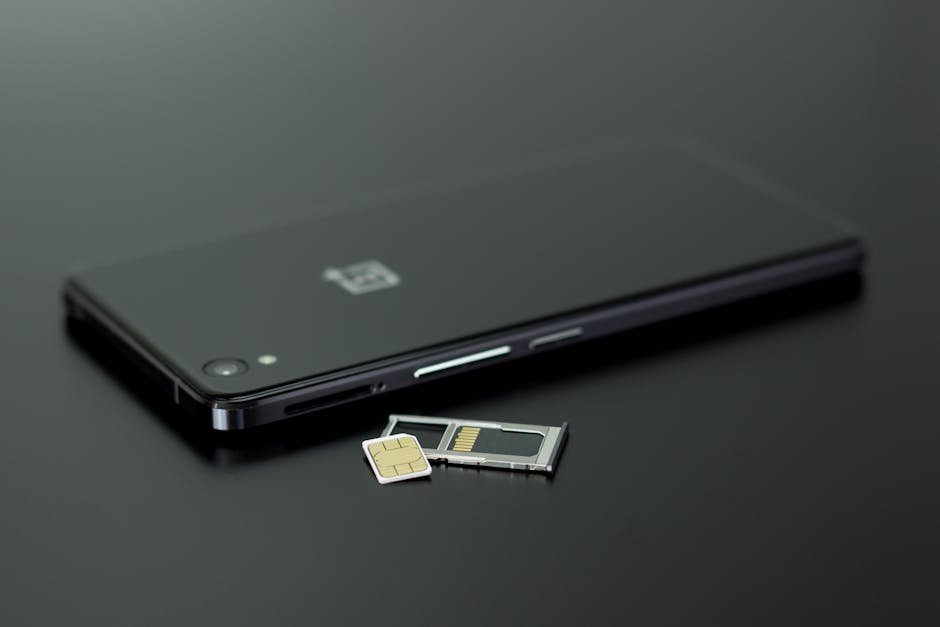
  • Software Updates for Mac: What They Are, Why They Matter

    At a glance

    • What it is: Software updates are fixes issued for operating systems, programs, and apps.
    • What’s new: CISA says updates patch security weak spots, and automatic updates install them as soon as they are available.
    • Who it is for: Anyone with a computer or phone, especially anyone who keeps clicking “Remind me later.”

    Are software updates for Mac worth installing now, or is “Remind Me Later” good enough? Short answer: install them. The federal Cybersecurity and Infrastructure Security Agency (CISA) is blunt: many updates exist to fix security risks, critical updates should go in as soon as possible, and automatic updates should be on. That covers the Mac’s operating system, plus the browser, antivirus software, apps, and other programs on it.

    Ground rules: this piece is based on specs and official documentation, not testing on any device. The source is CISA’s Update Software guidance, so this is about what updates are for and how to handle them (not a review of any macOS release, speed change, or new feature).

    What Are Software Updates for Mac?

    Mac laptop screen showing system settings
    Photo by Abdullah Bin Mubarak on Pexels

    Software updates for Mac are changes the software maker pushes out for the operating system, programs, and apps on the machine. The practical reason to care is security. CISA says technology providers issue updates to “patch” security weak spots as quickly as they can. Translation: the maker found a hole, and the update is the plug.

    That is also the short answer to “what is system updates?” A system update targets the device’s operating system; other updates cover individual apps and programs. The alert tends to show up at the worst moment, which is exactly why people dismiss it. But “later” has a way of becoming never (classic computer ownership).

    CISA says devices will usually notify you when updates need to run, and it singles out 2 categories for priority: web browsers and antivirus software. So a Mac routine should not stop at the operating system. A current system with a stale browser is not the clean win it sounds like.

    Spec Teardown

    There is no product spec sheet here, so the “spec” is the official guidance itself. Here is what CISA’s documentation commits to, line by line, with the counts pulled straight from its wording.

    Official documentation item What it confirms Figures / numbers
    CISA: Update Software Updates cover operating systems, programs, and apps; devices usually notify you. 3 update targets
    CISA: Update Software Install ALL updates, especially for web browsers and antivirus software. 2 named priorities
    CISA: Update Software The automatic-updates switch is usually in settings, possibly under Software or Security. 2 suggested settings areas
    CISA: Update Software If the menu is unclear, search settings for “automatic updates.” 1 search phrase
    CISA: Update Software CISA frames keeping software current as a short routine. 3 simple steps
    CISA: Update Software Automatic updates install without any input from you, as soon as available. 0 input required
    CISA: Update Software Every product you use should have auto-updates on by default (PRO TIP). 1 default setting: on
    CISA: Update Software Veda kept clicking “Remind Me Later” on her computer and phone. 2 devices left unpatched

    The useful distinction is not “big update” versus “small update.” It is whether the software is current. CISA’s position is that updates patch weak spots, which makes a pending update a security chore, not a cosmetic refresh. I like that framing because it kills the endless “is this one worth it?” debate.

    The U.S. angle: CISA is a U.S. federal agency, and its advice is deliberately device-agnostic. Whether the prompt pops up on a Mac, an iPhone, an Android phone, a browser, or an antivirus program, the logic is the same: a fix is available, and delaying it leaves weaker software in place. CISA also points readers to its Known Exploited Vulnerabilities Catalog to check software they may be using.

    A Practical Update Flow

    Computer screen displaying a software update prompt
    Photo by UMA media on Pexels

    CISA says the automatic-updates switch usually lives in the device’s or application’s settings, possibly under Software or Security. If the naming is unclear, search settings for “automatic updates.” Less glamorous than a keynote slide, sure, but this is the part that matters: find the setting, turn it on, and let the device handle routine releases.

    Turning on automatic updatesFlow diagram: Get an update notice → Open device or app settings → Look under Software or Security → Turn on automatic updates → Install critical updates promptly. Note: CISA: updates patch security weak spots, especially browsers and antivirusGet an update noticeOpen device or app settingsLook under Software or SecurityTurn on automatic updatesInstall critical updates promptlyCISA: updates patch security weak spots,especially browsers and antivirus
    Diagram: Turning on automatic updates. Drawn from the official sources linked in this article; it adds no new data.

    Automatic updates do not erase every decision. A Mac may still show notices, and individual apps may have their own update controls. The point is to shrink the odds that a busy week turns a security fix into a forgotten task.

    CISA’s cautionary character, Veda, didn’t have time to update software and regularly clicked “Remind Me Later” on her computer and phone. If that sounds like you (no judgment, it sounds like most people), automatic updates take the decision off your plate.

    Keep / Skip / Wait

    Verdict: Keep — turn on automatic updates and install critical ones promptly; that is exactly what CISA’s guidance says to do.

    What the Documentation Confirms, and What It Leaves Open

    What the specs confirm What the specs don’t tell you
    Many software updates are created to fix security risks and patch weak spots. Which specific security issue a particular Mac update addresses.
    Devices usually notify you about operating-system, program, and app updates. When a given device will show its next notification.
    Automatic updates install available updates without any input from you. Whether every app on a specific Mac offers the same automatic-update controls.
    Browser and antivirus updates are especially important. Whether a particular update changes speed, battery life, or compatibility.

    This is where update articles drift into vibes: “it feels faster,” “wait for the stable build,” “this release is huge.” None of that is in the official documentation, so none of it belongs in the recommendation. The guidance supports a simpler habit: install updates, prioritize critical notices, keep automatic updates on.

    How This Relates to Phone Updates

    Searches for software updates on iPhone, what is software update in Android, software updates for my phone, and what is software update in mobile are all versions of the same question. A software update is a fix supplied for an operating system, program, or app. CISA’s guidance covers devices in general, so the answer doesn’t change because the screen got smaller.

    The menu labels differ by device maker. The security principle does not: update the software you rely on, especially after a critical alert.

    Don’t Treat Browser Updates as Side Quests

    The browser is where logins, payments, work tools, and messages tend to live. CISA explicitly says to install all updates, especially for web browsers and antivirus software. That beats squinting at release notes to decide whether an update looks major enough.

    Check whether the browser has automatic updates on. Do the same for antivirus software, if you use it. Then check the Mac’s own settings. Not exciting. Neither is changing a smoke-detector battery.

    FAQ

    What is system updates on a Mac?

    System updates are updates to a device’s operating system. CISA says update notices can cover operating systems, programs, and apps. On a Mac, a system update is separate from an app or browser update, though all of them matter.

    What are software updates for my phone?

    They include operating-system updates as well as updates for programs and apps. CISA says to install all updates, especially critical ones, as soon as possible.

    What is software update in mobile devices?

    It is a change released for a phone’s operating system, apps, or other software. According to CISA, many updates are created to fix security risks, and automatic updates install them without any input from you.

    Should automatic updates be turned on?

    Yes, per CISA, which says every product you use should have auto-updates turned on by default. Look in device or application settings, possibly under Software or Security, or search settings for “automatic updates.”


    This article was written by the site’s author with the assistance of AI tools, and reviewed before publication.

  • Passkeys vs Passwords: What Changes for Your Sign-Ins

    At a glance

    • What it is: A passkey is a secret stored on your devices and unlocked the same way you unlock the device.
    • What’s new: Passkeys replace typed passwords with a sign-in that FIDO calls always strong and phishing-resistant.
    • Who it is for: Anyone whose sites or apps offer passkey sign-in, while passwords still cover the rest.

    Are passkeys worth switching to, or is a good password manager still enough? My short answer in the passkeys vs passwords debate: use passkeys wherever a site offers them, but don’t throw out the password manager just because marketing departments discovered a shiny new noun. (FIDO itself says “passkey” is a common noun, like “password,” so relax.) The FIDO Alliance calls passkeys a password replacement technology; password managers stay useful wherever a service still asks for a password. Everything below is based on specs and official documentation, not on device testing.

    Passkeys vs Passwords: The Practical Difference

    Phone showing a biometric sign-in prompt
    Photo by I’m Zion on Pexels

    A password is something you remember and type. A passkey is a secret stored on your devices, unlocked the same way you unlock that device: biometrics, a PIN, a pattern, or a security key. That difference matters because the service is no longer asking you to type a reusable secret into a sign-in box.

    FIDO describes passkeys as always strong, phishing-resistant, and designed so there are no shared secrets. In plain English: there’s no typed password for an attacker to collect at a fake sign-in page and replay later. FIDO goes further and says that with passkeys there’s no sign-in data that can be used to perpetuate attacks. That’s the serious part, not the “frictionless future” brochure copy.

    FIDO also says that with passkeys, users no longer need to enter usernames and passwords or additional factors. Read that carefully (it’s a big claim). It describes how passkey sign-in is meant to work on a service that supports it. It doesn’t mean every account you own suddenly works that way.

    Passwords are still everywhere, which makes a password manager a companion rather than obsolete baggage. CISA lists strong passwords and a password manager as easy ways to protect yourself from someone logging into an account and stealing data or money. CISA also says multifactor authentication (MFA) adds a second step, so even if someone steals your password, they can’t meet that second requirement.

    Spec Teardown

    Here’s what the official documentation actually commits to, with the only hard figures the source material provides.

    Item What official documentation says Figures / numbers
    Password breach context FIDO says passwords are responsible for a large share of breaches today. 80% of breaches
    Sign-in success FIDO reports passkeys produce more successful sign-ins than passwords. 20% more successful sign-ins
    Consumer survey cited FIDO’s account-compromise and abandoned-purchase stats come from its own consumer survey. World Passkey Day 2025 Consumer Password & Passkey Trends
    Credential type Passwords are remembered and typed; passkeys are secrets stored on a user’s devices. No typed secret with a passkey
    Unlock method Biometrics, security key, PIN, pattern, and similar device unlock methods. Same unlock as the device
    Where passkeys live A browser or OS credential manager (iCloud Keychain, Google Password Manager) or a third-party provider. Stored and synced by the provider
    Second factor CISA says MFA requires an additional step beyond a password. Password plus a second step

    A note on those figures: the 80% and 20% numbers come from the FIDO Alliance passkeys page, and FIDO is the industry group promoting passkeys (consider the source, though it’s also the body behind the standard). The security model is the more durable part. CISA’s MFA guidance covers the other half: why a stolen password alone shouldn’t be enough to get into an account. The caveat is that “shouldn’t” depends on whether you’ve actually turned MFA on, and whether the service offers passkeys at all.

    What Is Passkeys and How Does It Work?

    Password manager displayed on a mobile device
    Photo by Miguel Á. Padriñán on Pexels

    Passkeys explained without the fog machine: a site or app offers passkey sign-in. The passkey is stored with a passkey provider, which FIDO says can be a browser or operating system credential manager, such as iCloud Keychain or Google Password Manager, or a third-party app or browser extension. To sign in, you unlock your device the way you normally do. The passkey handles the credential work, with no typed username-and-password routine.

    Passkey sign-in flow from FIDO Alliance guidanceFlow diagram: Site or app offers passkey sign-in → Passkey stored and synced by a passkey provider → Unlock device with biometrics, PIN, pattern or security key → Signed in with no password typed. Note: Providers can be built-in managers like iCloud Keychain or Google Password Manager, or third-party apps.Site or app offers passkey sign-inPasskey stored and synced by a passkeyproviderUnlock device with biometrics, PIN,pattern or security keySigned in with no password typedProviders can be built-in managers like iCloudKeychain or Google Password Manager, orthird-party apps.
    Diagram: Passkey sign-in flow from FIDO Alliance guidance. Drawn from the official sources linked in this article; it adds no new data.

    So what is passkeys on iPhone, in documentation terms? FIDO names iCloud Keychain as an example of a built-in credential manager where passkeys are stored and synced. That doesn’t mean every account on your iPhone gets a passkey automatically. The website or app has to offer passkey sign-in first. (Same story on Android with Google Password Manager.)

    One small, useful tell: FIDO asks services that offer passkey sign-in to display the FIDO passkey icon. If you see it on a sign-in screen, that’s the signal the option exists. If you don’t, check the account’s settings anyway; CISA notes that security options may sit under a menu labeled Security, Password and Security, or something similar.

    Passkeys vs Password Manager: Not Actually a Cage Match

    A password manager stores passwords. A passkey provider stores and syncs passkeys. Often they live in the same place, since FIDO says the provider may be an operating system or browser credential manager, or a third-party provider. The practical result is far less dramatic than the headlines: use the strongest sign-in method each account supports.

    • Passwords only: a password manager helps you keep strong, distinct passwords without relying on memory. Add MFA if the account offers it.
    • Passkey offered: the passkey removes the typed password from sign-in, which is the whole phishing-resistance point.
    • Both offered: set up the passkey, and keep your account recovery options current.

    These are overlapping tools, not rival sports teams. (Anyone selling it as a fight is usually selling one side of it.)

    Where the Specs Stop Talking

    What the specs confirm What the specs don’t tell you
    Passkeys are stored on devices and unlocked with the device’s own unlock method. Which specific websites or apps in your accounts support passkeys.
    Passkeys are designed to be phishing-resistant, with no shared secrets and no password to steal. How smooth account recovery will be if you lose access to your usual device.
    Passkey providers can be built-in credential managers or third-party providers. Which provider setup fits every device you use, across brands.
    CISA says MFA blocks someone who has only your stolen password. Which MFA options each individual service offers or requires.

    This is where “passkeys are a trap” gets a little theatrical. The official material supports strong claims about phishing resistance and password replacement. It doesn’t promise universal compatibility, uniform recovery behavior, or a clean migration for every old account. Those gaps aren’t proof of a trap; they’re a reason to check each important service before you change your routine.

    A Sensible Account Strategy for U.S. Readers

    CISA’s own example is worth a read: a person named Deandre found that someone had broken into multiple accounts and changed the passwords, and he had to work long hours to recover what he could and set up a new email account. That’s the scenario all of this is meant to prevent.

    1. Start with the painful accounts. Primary email first (it’s the reset key for everything else), then banking, shopping accounts with saved cards, and work systems.
    2. Look for the passkey option. Check the sign-in screen and the account’s security settings.
    3. If passkeys are offered, set one up with the provider you already use on your devices.
    4. If not, keep a strong password in a password manager and turn on MFA where it’s available.

    Don’t confuse a passkey with a force field. Device access still matters, your device-unlock method still matters, recovery choices matter, and the site’s own implementation matters. FIDO’s pitch is about removing the shared password secret from sign-in, which is a meaningful improvement, not an excuse to stop paying attention.

    Keep / Skip / Wait

    Verdict: Keep — Use passkeys where supported, and keep a password manager plus MFA for the password-based web that remains.

    FAQ

    Are passkeys safer than passwords?

    According to FIDO, passkeys are always strong and phishing-resistant, with no password to steal and no shared secret. A password can be stolen or typed into a fake sign-in page; a passkey is designed to avoid that exchange entirely.

    Do passkeys replace a password manager?

    Not entirely. Passkeys replace passwords on accounts that support them. CISA still points to strong passwords and a password manager, which stay relevant for every service that hasn’t added passkey sign-in.

    What is passkeys on iPhone?

    FIDO lists iCloud Keychain as an example of a built-in credential manager where passkeys are stored and synced. Whether a given account can use one depends on whether that website or app offers passkey sign-in.

    Should I still use MFA with passwords?

    Where an account offers it, yes, that’s CISA’s guidance. MFA requires an additional step beyond the password, so someone who steals the password can’t get in with the password alone.


    This article was written by the site’s author with the assistance of AI tools, and reviewed before publication.

  • What Is a WiFi Router and Adapter? A Spec Guide

    At a glance

    • What it is: The router is the access point (AP) that hosts your Wi-Fi network, and the adapter is the radio a device uses to join it.
    • What’s new: Wi-Fi Alliance material for Wi-Fi Certified 7 highlights coordination between APs and OFDMA channel sharing for efficiency and lower latency.
    • Who it is for: People trying to work out whether a Wi-Fi problem comes from the router, the adapter, or coverage.

    Is your Wi-Fi problem in the router, or in the adapter inside the laptop that won’t connect, and which one should you replace? Here’s the short answer to “what is wifi router and adapter”: the router creates and manages the wireless network, and the adapter is the radio inside (or plugged into) each device that joins it. Marketing likes to blur those two jobs. Keep them apart. This guide is based on specs and official documentation. No equipment was tested for it.

    Router vs. Adapter: The Plain-English Answer

    Wi-Fi router sitting on a home office desk
    Photo by Jakub Zerdzicki on Pexels

    A Wi-Fi router sits on the network side. It works as an access point (AP), meaning it provides the Wi-Fi network that other devices connect to. The Wi-Fi Alliance’s Wi-Fi Certified 7 overview frames the newest features around APs. It describes “smarter coordination” that lets access points “collaborate instead of competing for spectrum,” which adds capacity in dense deployments.

    A Wi-Fi adapter sits on the client side. It’s the hardware that gives a single device Wi-Fi in the first place. It can be built in (most phones and laptops) or added on (a USB stick or a desktop card). Either way, it connects one device and doesn’t manage the network.

    This matters when you shop. A new adapter only helps when that one device’s Wi-Fi hardware is the bottleneck. A new router changes the network for everything in the house. An extender is a third category: it carries an existing network farther, and it doesn’t act as an adapter for anyone.

    Spec Teardown

    Documented item What the official documentation says Figures / numbers Why it matters for router vs. adapter
    AP coordination The Wi-Fi Alliance says smarter coordination allows APs to collaborate instead of competing for spectrum, which adds capacity in dense deployments. Wi-Fi Certified 7 This happens on the router/AP side. It doesn’t promise that any given client gets faster.
    OFDMA Orthogonal frequency division multiple access “effectively shares channels to increase network efficiency and lower latency.” Not specified in the pack It describes how airtime gets shared. It doesn’t tell you whether a particular router or adapter supports it.
    WiGig spectrum WiGig was introduced in 2016 and lets Wi-Fi devices use the uncongested 60 GHz band. 2016; 60 GHz Band support has to match on both ends. If the adapter doesn’t support a band, the router supporting it does nothing for that device.
    6 GHz market note The page refers to 6 GHz chipset shipments in 2026 for Wi-Fi 6E and tri-band Wi-Fi 7. 6 GHz; 2026 A “Wi-Fi 7” label on the box isn’t a full spec. Check which bands the product and your clients actually support.

    The takeaway from the table isn’t “newer is better.” It’s “trace the whole connection path.” A router can list every new feature, but each laptop, phone, or desktop can only use what its own adapter supports. The router decides what’s possible on the network, and the adapter decides what one device actually gets. That’s less exciting than the box art, but it’s how compatibility works.

    How a Router, Adapter, and Extender Fit Together

    Laptop with a small USB wireless adapter plugged in
    Photo by https://kaboompics.com/ on Pexels

    Start with the router, which hosts the network. Every device that joins it needs an adapter, built in or plugged in. An extender, if you use one, only handles coverage: it takes the existing network into rooms where the signal is weak. If you landed here searching “what is wifi router extender,” that’s the whole answer. It’s a coverage helper, not a router replacement and not an adapter.

    Mixing these up is an easy way to buy the wrong small plastic box (consumer electronics’ favorite product genre). Before you buy anything, figure out which of the three jobs is failing: the network, one device, or the far bedroom.

    Router, adapter, or extender: where to look firstFlow diagram: Pin down the weak link: router, adapter, or coverage → Check which Wi-Fi standard and bands the adapter supports → Match router bands (6 GHz, 60 GHz) to what the client supports → Add an extender only when the problem is coverage. Note: The Wi-Fi Alliance documents standard features, not any specific retail model or home setup.Pin down the weak link: router, adapter,or coverageCheck which Wi-Fi standard and bands theadapter supportsMatch router bands (6 GHz, 60 GHz) towhat the client supportsAdd an extender only when the problem iscoverageThe Wi-Fi Alliance documents standardfeatures, not any specific retail model orhome setup.
    Diagram: Router, adapter, or extender: where to look first. Drawn from the official sources linked in this article; it adds no new data.

    What Is a WiFi Router IP Address?

    A router’s IP address is the network address you use to reach the router itself, usually for settings. It isn’t the Wi-Fi standard, the network name, or an adapter spec. The Wi-Fi Alliance material in this pack covers AP coordination, channel sharing, and spectrum. It doesn’t list a universal router IP address or setup address, and this article won’t invent one.

    Generic how-to advice often assumes every router uses the same login. That isn’t safe to assume. Your router’s own manual or support page is the right place to find its admin address and setup steps.

    What Wi-Fi 7 Actually Changes in This Documentation

    Wi-Fi 7 router reviews tend to squash everything into one word: speed. The official material points somewhere more useful, which is coordination and efficiency. APs collaborating instead of fighting over spectrum matters most in dense deployments, such as apartment buildings, offices, and homes with several APs. OFDMA is about sharing channels efficiently and cutting latency, not about a bigger number on the box.

    Those are network-level capabilities. They tell you nothing about one router’s range, how its signal gets through your walls, its firmware quality, whether it works with your ISP, or how it pairs with a specific adapter. A spec sheet can show that a feature exists. It can’t tell you how that feature behaves in your floor plan.

    About 60 GHz: the Wi-Fi Alliance lists WiGig uses including virtual reality, multimedia streaming, gaming, wireless docking, and enterprise applications. Those are niche scenarios, and both ends need hardware that supports the band.

    What the Documentation Confirms, and What It Leaves Open

    What the specs confirm What the specs don’t tell you
    Wi-Fi Certified 7 material describes APs coordinating instead of competing for spectrum. Whether your home is dense enough for that coordination to matter.
    OFDMA shares channels to raise network efficiency and lower latency. How a specific router and a specific device adapter will perform together.
    WiGig gives supported Wi-Fi devices access to the 60 GHz band. Whether a given router, extender, or adapter supports WiGig.
    The page cites 6 GHz chipset shipments for Wi-Fi 6E and tri-band Wi-Fi 7. Which retail model fits your internet plan, floor plan, or budget.

    What WiFi Router to Buy: Run the Boring Compatibility Check First

    If you’re asking what wifi router to buy, start with the devices you already own instead of the router aisle. Is the problem the whole network, one device, or one dead zone? Each has a different fix.

    • Router: when the whole network needs new capabilities or better central coverage.
    • Adapter: when one device lacks Wi-Fi or has outdated wireless hardware.
    • Extender: only when the issue is getting the existing network farther through the space.
    • Documentation: check the supported standards and bands (such as 6 GHz) on both the router and the client before trusting a Wi-Fi label.

    That last step gets skipped far too often. “WiFi 7 router ASUS” is a search phrase, not a spec. The Wi-Fi Alliance page explains standard-level concepts, but it doesn’t cover any ASUS model, its ports, its supported clients, its price in USD, or where to buy it in the U.S. Use brand searches and Wi-Fi 7 router reviews as a cue to open the model’s own documentation, not as a substitute for reading it.

    If you’re on an older laptop whose adapter predates 6 GHz support, a new router alone won’t put that laptop on 6 GHz. You’d need a new adapter or a new laptop as well. (I’d sort that out before spending money on the router.)

    Keep / Skip / Wait

    The router, adapter, and extender each do a different job, and the official documentation describes standard features, not a specific retail model to upgrade to.

    Verdict: Wait — find out which part of the connection path is actually holding you back before you buy a new box.

    FAQ

    What is a wifi router and adapter, in simple terms?

    A Wi-Fi router provides the wireless network. A Wi-Fi adapter is the hardware that lets one device join that network. The router serves the network, and the adapter connects a single device to it.

    Is a Wi-Fi extender the same as a Wi-Fi adapter?

    No. An extender carries an existing Wi-Fi network into more of your space. An adapter is the hardware that lets a particular device join Wi-Fi at all.

    Does a Wi-Fi 7 router make every device Wi-Fi 7?

    No. The router and each device’s adapter are separate links in the chain. The Wi-Fi Alliance describes network capabilities, and nothing in that material says a router upgrades the hardware in the devices that connect to it.

    What does the Wi-Fi documentation say about 60 GHz?

    The Wi-Fi Alliance says WiGig was introduced in 2016 and lets Wi-Fi devices use the uncongested 60 GHz band for virtual reality, multimedia streaming, gaming, wireless docking, and enterprise applications.

    Related on Longview Desk


    This article was written by the site’s author with the assistance of AI tools, and reviewed before publication.
  • What Is a WiFi Router and How It Works: Wi-Fi 7 Specs

    At a glance

    • What it is: A Wi-Fi router links your compatible devices over Wi-Fi and moves their traffic to and from your internet connection.
    • What’s new: Wi-Fi CERTIFIED 7 adds 320 MHz channels in the 6 GHz band.
    • Who it is for: Anyone connecting Wi-Fi devices at home who wants to know what the newer specs actually change.

    Is it worth learning what your Wi-Fi router actually does before you spend money on a shiny Wi-Fi 7 box? Yes, and it won’t take long. Here’s what a WiFi router is and how it works. It sits between your devices and the internet connection coming into your home. Your devices talk to it over Wi-Fi, and it sends their requests out and brings the responses back. That’s the whole job. It’s infrastructure, not magic (no matter how many antennas the box art shows).

    Up front: this piece is based on specs and official documentation, not product testing. The official source here is the Wi-Fi Alliance’s page on Wi-Fi CERTIFIED 7. It covers capacity, latency, 6 GHz support, and channel width. It doesn’t cover retail prices, range results for specific models, or setup steps for any brand, so you won’t find any made-up numbers for those here.

    What a Wi-Fi Router Does

    Wi-Fi router sitting on a desk in a home office
    Photo by Jakub Zerdzicki on Pexels

    A Wi-Fi router creates the wireless network your phones, laptops, TVs, consoles, and smart gadgets join. Say a device asks for a web page. The router takes that request off Wi-Fi and sends it toward your internet connection. When the answer comes back, the router hands it to the right device. It repeats that constantly for everything on your network.

    Keep two roles separate. The router runs the local wireless network. Your internet service provides the connection beyond your walls. Retail hardware often bundles the two jobs into one box, which is why people mix them up, but they’re still different jobs. A faster router doesn’t make a slow internet plan faster.

    People also search “what is WiFi router and adapter,” which comes from a related mix-up. The router is the hub that provides Wi-Fi to many devices. The adapter is the Wi-Fi hardware inside (or plugged into) each device that lets it connect. Both ends set the limit. A new router can’t give an old laptop Wi-Fi 7 features its adapter doesn’t support.

    Then there’s “what is WiFi router IP address.” An IP address is the network address devices use to find each other. The official documentation here doesn’t list router login addresses, default passwords, or a universal setup address, and you shouldn’t assume one exists. Check the manufacturer’s documentation for your exact model.

    How a Wi-Fi router connects your devicesFlow diagram: Internet service reaches the router → Router broadcasts a Wi-Fi signal → Device joins the Wi-Fi network → Router passes data to and from the device. Note: Real results depend on device support and signal conditions.Internet service reaches the routerRouter broadcasts a Wi-Fi signalDevice joins the Wi-Fi networkRouter passes data to and from thedeviceReal results depend on device support andsignal conditions.
    Diagram: How a Wi-Fi router connects your devices. Drawn from the official sources linked in this article; it adds no new data.

    Spec Teardown

    Specification What the official documentation says Figures / numbers
    Certification generation Wi-Fi CERTIFIED 7 is the Wi-Fi Alliance certification meant to boost Wi-Fi performance and improve connectivity across many environments. 7
    6 GHz channel width The Wi-Fi Alliance says 320 MHz channels are available in the 6 GHz band. 320 MHz; 6 GHz
    Throughput claim Those 320 MHz channels provide twice the throughput of Wi-Fi 6 and enable multigigabit Wi-Fi device speeds. 320 MHz; 2x Wi-Fi 6
    Latency High speeds and deterministic, low latency across a wide range of signal conditions. —
    Device support The Alliance has extended Wi-Fi CERTIFIED 7 to 20 MHz-only devices. 20 MHz
    User benefits Expanded capacity, reduced interference, and multi-gigabit-per-second speeds. Multi-gigabit per second

    The headline is simple: Wi-Fi CERTIFIED 7 can use 320 MHz channels in the 6 GHz band, and the Wi-Fi Alliance says that gives twice the throughput of Wi-Fi 6. That’s a real capability. It isn’t a promise for your living room. The phrase is “enabling multigigabit Wi-Fi device speeds,” and the key word there is device. Your devices, what they support, and your signal conditions all decide what you actually get.

    The 20 MHz detail is the one I like most, because it cuts through the marketing. The Alliance extended Wi-Fi CERTIFIED 7 to 20 MHz-only devices. So a “Wi-Fi 7” label covers a wide range of hardware, from devices that can use 320 MHz channels to devices that never will. Same certification, very different channel widths. Read past the logo.

    What the Specs Settle and What They Leave Open

    Person connecting a laptop to a home Wi-Fi network
    Photo by Polina Tankilevitch on Pexels
    What the specs confirm What the specs don’t tell you
    Wi-Fi CERTIFIED 7 includes 320 MHz channels in the 6 GHz band. How fast a particular router will be in your particular home.
    Per the Wi-Fi Alliance, 320 MHz channels provide twice the throughput of Wi-Fi 6. Whether your devices can use that channel width at all.
    The certification targets deterministic, low latency across a wide range of signal conditions. Room-by-room coverage, dead spots, or how signals get through walls.
    Wi-Fi CERTIFIED 7 extends to 20 MHz-only devices. Which retail router fits your devices and internet plan.
    The Alliance lists expanded capacity and reduced interference as benefits. Price in USD, availability at U.S. retailers, firmware quality, or ASUS model details.

    This gap is where Wi-Fi 7 router reviews get messy. A spec describes what’s possible. A review mixes that with the reviewer’s floor plan, devices, firmware version, and internet plan. Those results don’t automatically carry over to your house. The official documentation gives you a solid reason to care about Wi-Fi 7, mainly the 6 GHz and 320 MHz part. It doesn’t tell you any particular box is the right buy.

    What Wi-Fi Router to Buy: A Sane Decision Rule

    Start with what you already own. If your phones and laptops don’t support the newer capabilities, a Wi-Fi 7 router’s headline feature is mostly something for later. That doesn’t make it useless. It just means “newest” and “best for my network today” are different questions.

    Next, keep Wi-Fi speed and internet speed apart. The Wi-Fi Alliance documentation describes the wireless link, including multigigabit device speeds. It says nothing about what your provider delivers. A router can improve the wireless side without touching the service coming into your home. That’s the part retailers tend to bury in the fine print, if they mention it at all.

    If you’re searching for an ASUS Wi-Fi 7 router, use the same discipline. Confirm the exact model is identified as Wi-Fi CERTIFIED 7 in its official materials. Then check its documented support against your devices and your connection. The official source used here doesn’t include ASUS specs, FCC labels, U.S. prices, or model-specific instructions, so don’t treat a brand name as a spec sheet.

    • Choose based on documented compatibility with the devices you’ll actually connect.
    • Consider Wi-Fi 7 when your devices can use the 6 GHz band and 320 MHz channels.
    • Don’t read “multigigabit” as a promise about your internet speed.
    • Get setup and IP address details from the manufacturer’s documentation.
    • Ignore “future-proof” claims unless the seller names the exact standard and features supported.

    Keep / Skip / Wait

    If your devices can’t use the 6 GHz band or 320 MHz channels yet, the headline gains sit unused. When your next phone or laptop supports them, look again.

    Verdict: Wait — Wi-Fi CERTIFIED 7 really can do more, but the specs can’t show it will improve the devices and service you have now.

    FAQ

    What is a WiFi router and how does it work, in simple terms?

    It manages the traffic on your local Wi-Fi network. Your devices connect to it wirelessly, and it moves their data between your home network and your internet connection.

    What’s the difference between a Wi-Fi router and an adapter?

    The router provides the Wi-Fi network for many devices. The adapter is the Wi-Fi hardware in a single device that lets it connect. Each one sets its own limit, so the slower of the two decides what you get.

    Does Wi-Fi 7 mean every device gets 320 MHz channels?

    No. The Wi-Fi Alliance says 320 MHz channels are available in the 6 GHz band. It also says Wi-Fi CERTIFIED 7 extends to 20 MHz-only devices. What each device supports still matters.

    Is Wi-Fi 7 automatically faster than Wi-Fi 6?

    The Wi-Fi Alliance says 320 MHz channels in the 6 GHz band provide twice the throughput of Wi-Fi 6 and enable multigigabit Wi-Fi device speeds. That describes what the standard can do. It doesn’t promise results for every device, room, or internet plan.

    Related on Longview Desk


    This article was written by the site’s author with the assistance of AI tools, and reviewed before publication.

  • WiFi 7 Router SCP: What the Specs Actually Say

    At a glance

    • What it is: “WiFi 7 router SCP” is a search for Wi-Fi 7 router specs, and the official docs don’t define “SCP.”
    • What’s new: Wi-Fi CERTIFIED 7 makes 320 MHz channels available in the 6 GHz band.
    • Who it is for: Shoppers comparing routers and devices built around Wi-Fi CERTIFIED 7 features.

    Is a WiFi 7 router SCP upgrade worth it for you, or can your current setup wait? Usually it can wait, unless your router and the devices connecting to it support the same useful features. “SCP” isn’t defined anywhere in the official Wi-Fi Alliance material, so there’s no honest way to treat it as a Wi-Fi 7 feature, setup mode, or router requirement. Treat it as a vague search term and work from the official Wi-Fi CERTIFIED 7 documentation, not retailer shorthand.

    This piece is based on specs and official documentation, not on testing. That matters. A router box can promise the moon in glossy type, but the official material says less. Wi-Fi CERTIFIED 7 adds features meant to improve connectivity, and 320 MHz channels are available in the 6 GHz band. Is that useful? Yes. Does it guarantee faster internet in every U.S. home, from a Boston apartment to a Raleigh split-level? No.

    What “WiFi 7 Router SCP” Most Likely Means

    Modern Wi-Fi router with antennas on a home office desk
    Photo by Pascal 📷 on Pexels

    Start with the basics, because the confusion usually starts there. A Wi-Fi router is the local networking box that lets compatible wireless devices talk to your network. An adapter is the hardware inside your laptop, phone, or streaming stick that connects to that wireless network. A new router doesn’t upgrade an older adapter. People skip this boring part and then blame “Wi-Fi 7” when things don’t improve.

    So for “what is wifi router and how it works,” here’s the practical answer: the router broadcasts a wireless network, and compatible devices join it. For “what is wifi router and adapter,” the router supplies the network and the adapter is the connection hardware on the device side. Wi-Fi CERTIFIED 7 is a certification generation from the Wi-Fi Alliance. It isn’t a magic label that gives every device on your network the same features.

    The Wi-Fi Alliance’s Wi-Fi CERTIFIED 7 page says the generation delivers high speeds and “deterministic, low latency across a wide range of signal conditions.” It also highlights expanded capacity, reduced interference, and multi-gigabit-per-second speeds. Those are statements about what the technology can do. They don’t replace checking a specific router, the devices you’ll connect, and what the maker actually documents.

    Here’s the order I’d check things in before any WiFi 7 router SCP listing gets near your shopping cart. (Short version: certification first, marketing last.)

    Wi-Fi 7 documentation check before you buyFlow diagram: Identify the router’s Wi-Fi certification → Confirm 6 GHz band support → Check for 320 MHz channels → Verify your devices’ Wi-Fi capabilities. Note: Official documentation confirms features, not performance in your home.Identify the router’s Wi-FicertificationConfirm 6 GHz band supportCheck for 320 MHz channelsVerify your devices’ Wi-Fi capabilitiesOfficial documentation confirms features, notperformance in your home.
    Diagram: Wi-Fi 7 documentation check before you buy. Drawn from the official sources linked in this article; it adds no new data.

    Spec Teardown

    Specification Figures / numbers What the official documentation says
    Certification generation Wi-Fi CERTIFIED 7 The Wi-Fi Alliance describes Wi-Fi CERTIFIED 7 as introducing new features that boost Wi-Fi performance and improve connectivity across a variety of environments.
    Frequency band 6 GHz The widest channels the Alliance describes for Wi-Fi 7 are tied to the 6 GHz band.
    Channel width 320 MHz 320 MHz channels are available in the 6 GHz band.
    Throughput comparison Twice the throughput of Wi-Fi 6 The Alliance says 320 MHz channels in 6 GHz provide twice the throughput of Wi-Fi 6.
    Device-speed language Multi-gigabit per second The Alliance says these channels enable multigigabit Wi-Fi device speeds.
    Device scope 20 MHz-only devices The Wi-Fi Alliance has extended Wi-Fi CERTIFIED 7 to 20 MHz-only devices, so the same certification can cover very different classes of hardware.

    The 320 MHz line is the headline spec, and it’s easy to misuse. The official wording says those channels are available in the 6 GHz band. It doesn’t say every Wi-Fi 7 router includes them, that every client can use them, or that every home will see the same result. If a listing makes the feature sound universal, it’s pulling marketing’s favorite trick: turning a conditional capability into a blanket promise.

    That last row matters more than it looks. If Wi-Fi CERTIFIED 7 can cover 20 MHz-only devices, then “Wi-Fi 7” on a box tells you which generation a product belongs to, not how wide its channels are. A small smart-home gadget and a flagship router can share the label and have very different capabilities. (That’s fine, as long as nobody pretends otherwise.)

    For a U.S. shopper, the sensible reading is narrower. Look for documentation that says Wi-Fi CERTIFIED 7, names the 6 GHz band, and lists 320 MHz channel support where it applies. Then check the client devices you plan to connect. A Wi-Fi 7 router paired with older devices will still work as a router, but the official material doesn’t support claiming that every device gets Wi-Fi 7-class performance.

    What the Official Specs Confirm, and What They Leave Out

    Laptop connecting to a wireless router in a living room
    Photo by Pascal 📷 on Pexels
    What the specs confirm What the specs don’t tell you
    Wi-Fi CERTIFIED 7 introduces features meant to boost Wi-Fi performance and connectivity. What “SCP” means, or whether it has anything to do with the Wi-Fi Alliance.
    320 MHz channels are available in the 6 GHz band. Whether a particular Wi-Fi 7 router offers those channels in every configuration.
    320 MHz channels in 6 GHz provide twice the throughput of Wi-Fi 6. What speed you’ll get in a specific U.S. home, on a specific internet plan, with a specific device.
    Wi-Fi CERTIFIED 7 extends to 20 MHz-only devices. Which router, adapter, phone, or laptop supports which features.
    The generation targets expanded capacity and reduced interference. Retail prices in USD, which U.S. retailers stock which models, or FCC label details for any device.

    This is where a lot of wifi 7 router reviews go sideways. A review can be entertaining, but it can’t replace the official compatibility trail. The Wi-Fi Alliance documentation covers certification and which features are available. It doesn’t give you a ranked list of routers, pricing, internet-provider compatibility, or a performance scorecard. Those missing pieces aren’t minor footnotes. They’re the actual buying decision.

    How to Read a Router Listing Without Getting Played

    Start with the certification language. “Wi-Fi 7” tells you more than a vague “next-generation wireless” slogan, but it still isn’t enough by itself. Look for explicit mentions of Wi-Fi CERTIFIED 7 and the 6 GHz band. If the listing touts 320 MHz channels, check that it says where that applies. The Wi-Fi Alliance ties that channel width specifically to 6 GHz, so a listing that doesn’t mention 6 GHz but brags about 320 MHz deserves a raised eyebrow.

    Next, separate the router from the client. A WiFi 7 router from Asus, for example, is still only one end of the connection. The official Wi-Fi Alliance material doesn’t cover individual Asus models, so any claim about a specific Asus router here would be a guess. The same goes for every brand: check the maker’s documentation for the exact model number instead of assuming a logo tells you the feature set.

    Then stop treating the router’s IP address as a Wi-Fi 7 feature. A search for “what is wifi router ip address” is about finding your router on your local network. It has nothing to do with the capabilities the Wi-Fi Alliance describes for Wi-Fi 7. The official Wi-Fi 7 page covers certification, 6 GHz channels, capacity, interference, and device speeds. It doesn’t include router IP instructions, so check your router maker’s setup guide for that. Don’t mash unrelated setup questions into a made-up Wi-Fi 7 checklist.

    A quick reader scenario: if you’re on a laptop with a Wi-Fi 6 adapter and you’re eyeing a Wi-Fi 7 router mainly because a listing says “SCP,” you’d be paying for capabilities your laptop can’t use, based on a term nobody officially defines. If you’ve already confirmed that your main devices document Wi-Fi 7 and 6 GHz support, the math changes.

    Who Should Care About Wi-Fi 7?

    Wi-Fi 7 matters most if you’re deliberately shopping for compatible networking gear and client devices, especially when 6 GHz and 320 MHz channels are part of the documented feature set. The official material gives you a real reason to care: wider channels in 6 GHz, more capacity, less interference, and the potential for multi-gigabit device speeds.

    But if you’re replacing a router because of a vague “SCP” label, slow down. The acronym isn’t explained in the official documentation. A search phrase isn’t a standard. A product page isn’t proof of certification. And a certified feature isn’t proof that every device in your house will perform the same. That may sound fussy. Good. Networking gear punishes careless shopping.

    Keep / Skip / Wait

    Verdict: Wait — “SCP” isn’t defined in the official Wi-Fi 7 documentation, so confirm your router and devices actually document Wi-Fi CERTIFIED 7, 6 GHz, and 320 MHz support first.

    FAQ

    What is WiFi 7 router SCP?

    The Wi-Fi Alliance documentation doesn’t define “SCP” as a Wi-Fi 7 feature. The reliable part of the search is Wi-Fi 7 itself. Wi-Fi CERTIFIED 7 is a certification generation that includes capabilities such as 320 MHz channels in the 6 GHz band.

    What is Wi-Fi CERTIFIED 7?

    According to the Wi-Fi Alliance, Wi-Fi CERTIFIED 7 introduces features that boost Wi-Fi performance and improve connectivity across different environments. The page highlights high speeds, deterministic low latency, expanded capacity, reduced interference, and multi-gigabit device speeds.

    Does every Wi-Fi 7 router have 320 MHz channels?

    The official documentation doesn’t say that. The Wi-Fi Alliance says 320 MHz channels are available in the 6 GHz band, and it has also extended the certification to 20 MHz-only devices. Check the documentation for the specific router and for the devices that will connect to it.

    Will a Wi-Fi 7 router make every device faster?

    The official documentation doesn’t promise that. It describes what Wi-Fi CERTIFIED 7 can do and the device speeds it makes possible, but each connected device’s adapter sets its own limits. Check what both the router and each device document before you assume an upgrade.

    Related on Longview Desk


    This article was written by the site’s author with the assistance of AI tools, and reviewed before publication.