Author: Kip Ramos

  • Strong Passwords That Are Easy to Remember: What Works

    At a glance

    • What it is: A password manager generates and stores strong passwords so the only password you memorize is the manager’s own.
    • What’s new: Passkeys offer a passwordless, phishing-resistant sign-in where a service supports them.
    • Who it is for: People juggling passwords across email, banking, healthcare, and other important accounts.

    Can strong passwords actually be easy to remember when every account needs a different one? Yes, but not the way the search phrase implies. The trick is to remember the password for a password manager, not a long list of account passwords. CISA’s guidance calls for passwords that are long, random, and unique. A manager generates and stores them, and can fill them in when you sign in. That is the useful answer to “strong passwords that are easy to remember”: make the routine manageable rather than making every password memorable.

    Up front: this is a specs-and-documentation assessment, not a test of any password manager or sign-in service. CISA describes what a manager can do; it does not establish that every product works the same way. And “easy to remember” is not a security specification. A familiar name or birthday may stick in your head, but CISA specifically warns against common identifying information like birthdays and pet names (the stuff anyone can scrape off a social profile).

    Spec Teardown

    Person typing at a laptop sign-in screen
    Photo by Kampus Production on Pexels

    There is no device to benchmark here. The relevant specs are the properties CISA says a strong password needs and the sign-in properties the FIDO Alliance documents for passkeys. Read the table as a checklist, not as a promise that a particular account accepts every method.

    Documented requirement or feature Figure in the official guidance What it means for your setup Source
    Strong-password properties 3 tips, all required: long, random, unique A memorable pattern alone does not meet the full checklist. CISA
    Account reuse 1 different strong password per account Do not carry the same password from email to banking or healthcare. CISA
    Manager password 1 strong password to remember The manager stores and fills the other passwords. CISA
    Named unsafe example 12345 Short, predictable strings are called out as not safe for important accounts. CISA
    Passkey sign-in Public-private key pair (2 keys, no shared secret) A passkey is not a password you memorize and type. FIDO Alliance

    Notice what is not in that table: a universal password length, a required mix of symbols, or a product ranking. The supplied CISA guidance says “long” but gives no length figure. An account may impose its own requirements; CISA suggests checking whether important accounts, including email, banks, and healthcare providers, enforce strong-password requirements. Don’t turn a missing number into a made-up rule.

    The Memory Trick Is Not a Clever Password

    Searches for “how to create strong passwords” often invite word substitutions and personal memory cues. That sounds convenient. It also dodges CISA’s central point: a strong password must be random and unique as well as long. CISA explicitly calls simple passwords such as 12345 unsafe and warns against birthdays and pet names. Adding a personal flourish to an obvious starting point is not the same as generating a random password. CISA’s own comparison is blunt: an easy-to-guess password is like locking the door but leaving the key in the lock.

    A password manager changes the job. According to CISA, it can generate, store, and fill passwords, flag weak or reused entries, and generate stronger replacements. You retain responsibility for a strong password for the manager itself. That is the one password CISA says you need to remember when using this approach. The other account passwords can be hard to recall because recall is no longer their job (good riddance to the mental filing cabinet).

    Here is the documentation-backed flow: choose a password manager, remember its strong password, generate passwords for accounts, and check for weak or reused ones. Keep a different strong password for each account. CISA does not identify a particular manager in the supplied guidance, so this is a workflow, not a product endorsement.

    A manageable sign-in routineFlow diagram: Choose a password manager → Remember its strong password → Generate passwords for accounts → Check for weak or reused passwords. Note: Use a different strong password for each account.Choose a password managerRemember its strong passwordGenerate passwords for accountsCheck for weak or reused passwordsUse a different strong password for eachaccount.
    Diagram: A manageable sign-in routine. Drawn from the official sources linked in this article; it adds no new data.

    If you’re starting with important U.S. accounts, CISA calls out email, banks, and healthcare providers as places to check password requirements. Review what each account accepts before changing its sign-in. Then use the manager’s weak- or reused-password alerts to spot entries that need attention.

    What the Documentation Leaves Open

    Person unlocking a phone with a fingerprint
    Photo by I’m Zion on Pexels

    Official guidance does not answer every practical question about the service in front of you. Keep these limits together when deciding what to change.

    What the specs confirm What the specs don’t tell you
    CISA recommends long, random, unique passwords and a different strong password for each account. The supplied guidance does not give a universal minimum length or confirm the rules of a particular account.
    CISA says a password manager can generate, store, fill, and flag weak or reused passwords. It does not compare named managers or document how any particular manager handles your accounts.
    FIDO says passkeys use cryptographic key pairs, are phishing-resistant, and are always strong. That does not confirm that every service you use offers a passkey sign-in.
    FIDO says a passkey can replace a password-plus-SMS-code flow. It does not say which of your accounts currently allow that swap.

    The distinction matters if a search result offers a “strong passwords list.” A list of public examples is not a substitute for unique passwords generated for your accounts. CISA’s rule is different per account; a list meant for everyone cannot provide that personal separation. Treat examples as explanations of the idea, not credentials to copy. The same objection applies to an allegedly memorable password that you reuse everywhere: convenience at sign-in does not make it unique.

    Where Passkeys Change the Question

    There is another route besides typing a password. FIDO describes a passkey as a secret stored on a user’s device and unlocked the way the user unlocks that device, such as with biometrics, a PIN, a pattern, or a security key. Passkeys use public-private key cryptography rather than a shared password. FIDO calls them phishing-resistant and says they are always strong.

    That is a different answer to the memory problem: with a passkey, there is no account password to remember and type for that sign-in. Where an account still uses passwords, CISA’s long-random-unique advice still applies. Where a service offers passkeys, the sign-in choice changes. Check the options the actual service presents; the supplied FIDO documentation explains the technology, not the availability of passkeys at every bank, retailer, or carrier (FIDO does say services that support passkeys should display its passkey icon, so look for it on the sign-in page).

    FIDO also says a passkey sign-in can replace a legacy flow such as a password plus an SMS one-time code, and describes a passkey as a primary factor that standing alone is more secure than password plus OTP or password plus phone approval. Read that as a description of what the method can do, not an instruction to switch off protections at an account that does not offer a passkey. Marketing likes to flatten every sign-in method into “easy and secure.” The useful distinction is simpler: a manager helps you handle passwords; a passkey replaces a password for a supported sign-in.

    Keep / Skip / Wait

    Judged on the documentation alone, the manager-plus-passkeys routine holds up.

    Verdict: Keep — keep the goal of memorable sign-ins, but let a manager handle unique account passwords and use passkeys where a service offers them.

    FAQ

    What is a secure password in cybersecurity terms?

    In the supplied CISA guidance, a strong password follows all of its tips: it is long, random, and unique. The guidance does not give a universal character count here. “Easy for me to recall” is not one of those properties.

    How do I generate strong passwords without memorizing them all?

    Use a password manager to generate and store a different strong password for each account. CISA says managers can also fill passwords and identify weak or reused ones. Remember a strong password for the manager itself. Check the requirements of an account before replacing its existing password.

    Is a strong passwords list useful?

    Not as a set of passwords to copy. CISA calls for a unique password for every account. A published list is the opposite of an account-specific credential. If a list helps explain why obvious choices such as 12345 are weak, fine; use the principle, not an entry from the list.

    Are passkeys easier to remember than strong passwords?

    A passkey is not a password you memorize. FIDO says it is stored on a device and unlocked using the device’s sign-in method. For accounts that offer passkeys, that can remove the need to recall and type an account password. For password-based accounts, the manager approach still solves the memory problem without giving up CISA’s long, random, unique requirements.

    Related on Longview Desk


    This article was written by the site’s author with the assistance of AI tools, and reviewed before publication.

  • How Much Type C Charger Samsung Phones Need: Specs First

    At a glance

    • What it is: USB Power Delivery (USB PD) is the USB-IF specification for supplying power over a USB Type-C cable and connector.
    • What’s new: USB PD Revision 3.1 raised the specification’s ceiling to 240W, up from the earlier 100W limit.
    • Who it is for: People comparing USB-C chargers and cables for phones and other devices that charge over USB.

    How much should you spend on a Type-C charger for your Samsung phone, and how many watts do you actually need? The honest answer from the official documentation is: start with the phone, not the shelf tag. The USB-IF page on USB Power Delivery describes what the charging standard can support; it does not list a Samsung model’s requirement or a U.S. price. So check your phone’s official charging specifications, read the charger’s USB PD capabilities, check the cable’s rating, and only then compare retailer prices. A big wattage printed on a box is not, by itself, an answer (it’s a ceiling, and ceilings don’t charge phones).

    That distinction matters because “how much” can mean dollars or watts, and retail copy loves to blur the two. The USB-IF’s USB Power Delivery documentation is the primary source here. This article is based on that specification and documentation, not hands-on testing.

    Spec Teardown

    USB-C wall charger beside a cable
    Photo by ready made on Pexels

    Here is the useful part of the official USB-IF documentation, without pretending a standards ceiling is a shopping recommendation.

    Documented specification Figure What it means when shopping
    USB PD Revision 3.1 maximum Up to 240W A capability of the updated specification (announced in 2021), not a stated requirement for any Samsung phone.
    Earlier USB PD limit 100W The revision raised the standard’s ceiling; a higher ceiling does not identify what your device accepts.
    Electrical basis of the earlier limit 20V with USB Type-C cables rated at 5A The cable rating is part of the power story, not an afterthought.
    Updated USB Type-C specification Release 2.1 USB-IF says this update defines 240W cable requirements.
    Adjustable voltage supply mode Between 15V and the charger’s maximum available fixed voltage Lets the powered device request an intermediate voltage; USB-IF does not say every phone uses that mode.

    All figures above come from the USB-IF USB Charger (USB Power Delivery) page. Notice what the table does not contain: a Samsung model, its supported charging power, a U.S. price, or a promised time to charge. The standard describes what compliant implementations may deliver. Your decision still begins with the particular phone.

    Watts first, price second

    If the question is “how much Type-C charger for Samsung,” identify the phone before choosing a wattage. Check its official charging documentation for the requirements it states. Then read the charger’s documentation for its USB PD capabilities, and check the cable’s stated power rating. That is more work than grabbing the largest number on a shelf tag, but it keeps unlike specifications from being treated as interchangeable.

    USB-IF says USB PD Revision 3.1 enables delivery of up to 240W over a full-featured USB Type-C cable and connector. “Up to” is doing real work in that sentence. It describes the specification’s upper limit, not a universal output from every USB-C charger and not the amount every connected device will draw. Likewise, USB-IF’s account of the former 100W limit does not imply that a phone needs 100W. Don’t turn a standards timeline into a phone spec.

    If the question is dollars, the official documentation offers no U.S. retail listing to quote, and I’m not going to invent one. Prices vary by retailer and by the specific charger and cable being sold. Compare listings only after you know which documented capabilities you need; otherwise, a cheaper listing and a pricier listing may not be offering the same thing. There is no supported “normal price” here, and making one up would be marketing speak with a dollar sign in front of it.

    The same caution applies to the search “how much type c charger at pep.” The USB-IF documentation contains no retailer listing, currency, or availability information for Pep or anyone else, so it cannot support a Pep price or convert that question into a U.S. shopping estimate. Check the retailer’s current listing instead.

    A sensible documentation check runs from device to charger to cable, then price (not the other way around). USB-IF’s figures explain why the cable belongs in that sequence: its description of the earlier 100W limit specifies USB Type-C cables rated at 5A, while the updated USB Type-C Release 2.1 defines requirements for 240W cables. Neither statement identifies the cable supplied with a particular charger.

    Check a charger before buyingFlow diagram: Check the phone’s charging requirements → Read the charger’s USB PD specifications → Check the cable’s power rating → Compare retailer prices. Note: A USB-C connector alone does not establish charging power.Check the phone’s charging requirementsRead the charger’s USB PD specificationsCheck the cable’s power ratingCompare retailer pricesA USB-C connector alone does not establishcharging power.
    Diagram: Check a charger before buying. Drawn from the official sources linked in this article; it adds no new data.

    USB-C is the connector; USB PD is the power specification

    Close view of a USB-C cable connector
    Photo by ready made on Pexels

    “What is a Type-C charger?” is a fair question, because retail wording tends to mash the plug shape and the charging protocol into a single label. USB Type-C names the connector and cable type discussed in USB-IF’s documentation. USB Power Delivery names the specification for delivering power over it. Seeing a USB-C connector on a charger is not enough to establish that charger’s USB PD capabilities, the cable’s rating, or what a given phone supports.

    USB-IF describes USB PD as designed to coexist with standard USB Battery Charging implementations. That is another reason not to read a connector label as a complete charging specification: more than one charging scheme can live behind the same plug. Look for the actual power information in official product documentation. The standard tells you what to look for; the product documentation tells you what a specific product claims.

    The USB-IF page also describes an adjustable voltage supply mode that lets the powered device request intermediate voltages between 15V and the charger’s maximum available fixed voltage. Useful technical detail, yes (and a good sign that negotiation, not raw wattage, is the point of USB PD). A reason to assert a Samsung charging speed from this documentation? No. The page does not name a Samsung model or say which features it implements.

    What the documents settle, and what they leave open

    What the specs confirm What the specs don’t tell you
    USB PD Revision 3.1 allows up to 240W over a full-featured USB Type-C cable and connector. Whether a particular Samsung phone accepts that power, or whether a listed charger supplies it.
    The previous USB PD limit was 100W using 20V and USB Type-C cables rated at 5A. The rating of a cable bundled with a specific retail product.
    USB Type-C Release 2.1 defines 240W cable requirements. Whether a cable in a particular shopping cart meets those requirements.
    USB PD includes an adjustable voltage supply mode between 15V and the charger’s maximum fixed voltage. Which phones use that mode, or what charging speed results.

    This is the line between a spec-based buying check and a product review. The official USB-IF documentation supports the left column. To resolve the right column, you need documentation for the specific phone, charger, cable, or retail listing. Until you have those, there is no responsible model-by-model recommendation or exact price to give.

    Keep / Skip / Wait

    If you already own a USB-C charger your phone’s documentation supports, nothing in the USB PD specification argues for replacing it. If you’re buying new, verify the phone’s stated requirement, the charger’s USB PD capabilities, and the cable’s rating, then shop on price.

    Verdict: Wait — check your phone’s requirements and the charger-and-cable specifications before paying for a wattage claim.

    FAQ

    How much Type-C charger does a Samsung phone need?

    There is no Samsung-wide wattage answer in the USB-IF documentation. Check the official charging requirements for your particular phone, then compare them with the charger’s documented USB PD capabilities and the cable’s rating. The USB PD maximum of 240W is a standards ceiling, not a phone-specific target.

    How much does a Type-C charger for Android cost?

    The USB-IF documentation lists no U.S. charger prices, and “Android” does not identify a specific device requirement. Check your phone’s official specifications first, then compare current U.S. retailer listings for chargers and cables with the relevant documented capabilities.

    What is a Type-C charger for iPhone, and how much is it?

    “Type-C” describes the USB-C connector; USB PD describes the power-delivery specification. The USB-IF page provides no iPhone model requirements or iPhone charger prices, so it cannot confirm compatibility or a dollar amount. Check the particular iPhone’s official charging documentation and the product listing rather than borrowing a Samsung answer.

    Does a 240W USB-C label mean faster phone charging?

    Not on the evidence here. USB-IF says USB PD Revision 3.1 supports up to 240W with a full-featured USB Type-C cable and connector. It does not say a given phone accepts that amount or that a particular charger-and-cable combination delivers it. Read the device, charger, and cable specifications as a set.

    Related on Longview Desk


    This article was written by the site’s author with the assistance of AI tools, and reviewed before publication.

  • What Is Software Update in Mobile? What CISA Says

    At a glance

    • What it is: A software update is a fix from the provider that can patch security weak spots in a device or application.
    • What’s new: CISA urges installing all updates promptly and turning on automatic updates.
    • Who it is for: Phone owners who keep tapping “Remind me later” on update alerts.

    Should you tap “Install” on that phone update, or is “Remind me later” fine for now? Here’s the short answer to “what is software update in mobile”: it’s a change pushed by whoever makes the software. According to CISA’s update guidance, many of those changes exist to fix security risks. So the alert is a maintenance call, not a sales pitch (whatever adjectives the release notes use).

    This piece looks at one distinction the alert screen often blurs: is this an update to the phone’s system, or to an app on it? CISA’s advice covers both, and the practical steps differ a little.

    Spec Teardown

    A person scrolling through settings on a smartphone
    Photo by Brett Jordan on Pexels

    To be clear up front: this article is based on specs and documentation, not testing on a device. The only official source here is the U.S. Cybersecurity and Infrastructure Security Agency’s (CISA) guidance, not a manufacturer’s model sheet. So the table below shows what that guidance actually commits to. It can’t give you a Samsung menu path, a US carrier rollout date, or a version number.

    Item What CISA’s guidance says Count from CISA’s page
    Purpose Providers issue updates to “patch” security weak spots as quickly as they can. No schedule or figures stated
    Scope Install ALL updates, especially for web browsers and antivirus software. 2 software types singled out (browsers, antivirus)
    Timing When notified, especially about critical updates, install as soon as possible. No deadline stated
    Automatic updates Look in device settings, possibly under Software or Security; search “automatic updates” if needed. 2 settings areas named; 1 search term
    No auto-update option Every product should have auto-updates on by default; if not, ask your provider why not. 1 follow-up: ask the provider
    Example case Veda regularly clicked “Remind Me Later” on her computer and phone. 2 devices postponed
    Further reference CISA points readers to its Known Exploited Vulnerabilities Catalog. 1 catalog referenced

    Those counts are about as granular as the source gets. CISA’s page names 2 places to look for the switch (Software or Security), 1 fallback search (“automatic updates”), and 2 kinds of software you shouldn’t skip (web browsers and antivirus). It gives no release schedule, download size or price. Any device-specific detail has to come from the notice itself and from the provider. Don’t stretch a general security recommendation into a promise about what one particular update will do.

    What is system updates vs. app updates?

    “Software update” is a catch-all term. CISA talks about updates to devices and to applications, and its example includes moving to the newest operating-system version. That gives you a workable split:

    • System update: changes the phone’s underlying software, the operating system. In CISA’s example, the fix for a security flaw arrived this way.
    • App update: changes one application. CISA singles out web browsers and antivirus software as ones you shouldn’t skip.

    Both count. CISA says to install ALL updates, not just whichever one is nagging you this week. So if you’re asking “what is software update in phone” terms, the answer is either kind. The alert should tell you which one it is.

    CISA’s example person, Veda, didn’t have time to update and regularly clicked “Remind Me Later” on her computer and phone. The fix in that story included updating her operating system to the newest version, which had fixed the security flaw. The point isn’t drama. A postponed system update is a known weak spot you’re choosing to leave open.

    Reading the alert before you tap

    A person reading an update alert on a phone
    Photo by RDNE Stock project on Pexels

    A new interface is easy to spot. A patched weak spot usually isn’t. That’s why update alerts are so easy to put off, and why CISA warns against putting them off. Start with two questions: where did this alert come from, and what does it say it changes?

    CISA’s page tells you to look in settings for update controls. It does not vouch for any particular pop-up, message or website. The safer habit is to open the device’s settings, or the app’s settings, and check what’s actually waiting there. Don’t trust a generic message that just says “update now.”

    Here’s the flow the official guidance supports. Respond to the notice and install promptly (critical updates first). Then find the automatic-update control so you aren’t making this choice every week. CISA says the control may sit under Software or Security. If it isn’t there, search settings for “automatic updates.” Labels vary by device, so treat this as a decision path, not a tap-by-tap tour.

    From update alert to automatic updatesFlow diagram: Read the alert: system or application? → Install promptly, especially critical updates → Open settings, check Software or Security → Turn on automatic updates. Note: No auto-update option? CISA says to ask your provider why not.Read the alert: system or application?Install promptly, especially criticalupdatesOpen settings, check Software orSecurityTurn on automatic updatesNo auto-update option? CISA says to ask yourprovider why not.
    Diagram: From update alert to automatic updates. Drawn from the official sources linked in this article; it adds no new data.

    Automatic updates: useful, not magic

    According to CISA, with automatic updates on, devices install updates without any input from you as soon as they’re available. That takes “I’ll get to it later” out of the routine. I like this rule (boring defaults do a lot of work), especially if you dismiss alerts on reflex.

    Check what the switch covers, though. CISA’s guidance doesn’t say a single setting handles both system and app updates on every phone. It also gives no availability dates for any US carrier. If a friend’s phone got an update and yours hasn’t, that doesn’t mean yours is broken. Check your own settings and notices.

    If a product has no auto-update option at all, CISA’s advice is pointed: ask the provider why not. Its PRO TIP says every product you use should have auto-updates turned on by default. So a missing switch is a question for the provider, not a scavenger hunt through menus that may not exist.

    What the specs confirm, and what they leave open

    What the specs confirm What the specs don’t tell you
    Many updates fix security risks, and CISA urges prompt installation, especially of critical updates. Whether the specific update on your phone fixes a flaw, adds a feature, or both.
    Automatic-update settings may be under Software or Security; settings search can find them. The exact menu path on a Samsung phone or any other model.
    CISA covers both device and application updates and highlights browsers and antivirus software. Whether one device setting controls every app’s updates.
    Devices usually notify you when updates need to run. When a given provider or US carrier releases an update for your device.

    Same words, different devices

    Searching “what is software update in samsung” doesn’t change the basic idea. A Samsung phone gets system notices and app notices like any other phone, but CISA’s guidance has no Samsung-specific steps. Use that phone’s own settings rather than a menu path copied from a different model. The security principle carries over; the exact taps may not.

    “Software updates tesla” shows where a phone guide stops being useful. CISA’s page covers software updates across products, but it has no Tesla procedure or release details. Don’t apply phone-settings advice to a car. Check the update information for the product that actually showed the notice.

    One more resource from the same CISA guidance: it points to the Known Exploited Vulnerabilities Catalog for software with flaws attackers are already using. You don’t need it to update a phone, but it shows why “later” carries a real cost.

    Keep / Skip / Wait

    For both system and app updates, CISA’s guidance points one way: install promptly and let automatic updates do the remembering.

    Verdict: Keep — keep auto-updates on and install alerts promptly, critical ones first.

    FAQ

    Is a phone system update the same as an app update?

    No. A system update changes the operating system; an app update changes one application. CISA says to install ALL updates, and it calls out browsers and antivirus software in particular.

    Where do I find automatic updates?

    CISA suggests looking in the device’s settings, possibly under Software or Security. If it isn’t there, search settings for “automatic updates.” The guidance doesn’t list exact paths for each phone.

    What does “software updates are controlled by your organization” mean?

    It usually shows up on a phone that an employer or school manages. CISA’s page has no steps for changing an organization’s controls. Don’t try to get around them. Ask whoever manages the device how its updates are handled.

    Does every update add new features?

    CISA’s guidance makes no such promise. It says many updates patch security weak spots. For feature details, read the notes attached to your specific update. As noted above, this article is based on documentation, not testing on a device.

    Related on Longview Desk


    This article was written by the site’s author with the assistance of AI tools, and reviewed before publication.
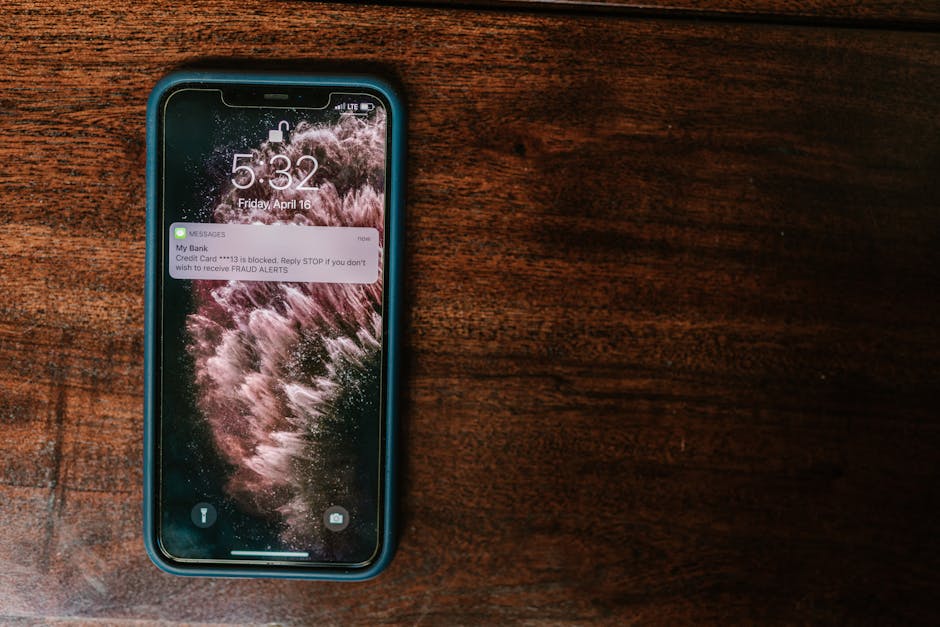
  • Passkeys vs Password Manager: What Each Does

    At a glance

    • What it is: A passkey replaces a password for sign-in; a password manager stores and syncs credentials, including passkeys.
    • What’s new: Built-in credential managers and third-party apps or browser extensions can both act as passkey providers, according to FIDO.
    • Who it is for: People with accounts that offer passkey sign-in and other accounts that still require passwords.

    Do you need passkeys instead of a password manager, or do they work together? They work together. A passkey is a way to sign in without entering a password; a password manager is a place that can store and sync passkeys as well as help you manage passwords. That is the useful answer to passkeys vs password manager (the names make this sound like a fight it isn’t).

    The distinction matters because an account has to offer passkey sign-in before you can use a passkey there. For accounts that still require passwords, the password manager still has a job. CISA recommends strong passwords and a password manager, and explains why turning on multifactor authentication (MFA) adds protection when a password is stolen. Don’t throw out a useful password setup just because one account offers a cleaner sign-in.

    Spec Teardown

    Person signing in on a phone
    Photo by Rahul Shah on Pexels

    Here are the claims worth separating from the sales pitch. The figures below are published by the FIDO Alliance, not measurements of a particular account, phone, or password manager. This article is based on specs and documentation, not on testing of any product.

    Documented point Figure or spec What it means here
    Role of a passkey Password replacement It changes the sign-in method for an account that supports it.
    Where a passkey may live Built-in or third-party provider FIDO names built-in credential managers such as iCloud Keychain and Google Password Manager, plus third-party options such as 1Password and Dashlane.
    Password-related breaches 80% FIDO uses this figure to explain the push away from passwords; it is not a prediction about your accounts.
    Successful sign-ins 20% more than passwords FIDO reports this improvement, citing Google. It does not establish how your particular sign-ins will go.
    Security-key history Since 2019 FIDO says security keys have contained device-bound passkeys since FIDO2 added passwordless sign-ins via discoverable credentials.
    Extra factor at sign-in None required with a passkey FIDO says users no longer need to enter usernames, passwords, or additional factors when signing in with a passkey.

    Read the numbers with their labels attached. The 80% figure describes the password problem in FIDO’s framing, while the 20% figure concerns successful sign-ins versus passwords. Neither tells you that every service supports passkeys, that a specific provider fits your devices, or that a password manager has become pointless. Those are different questions (and the ones to ask before changing a setup).

    The real difference: sign-in method versus storage

    A passkey is a password replacement technology. FIDO describes passkeys as always strong and phishing-resistant, and says there is no password to steal and no sign-in data that can be used to perpetuate attacks. With a passkey sign-in, the user does not need to enter a username and password or an additional factor, according to FIDO. That describes the supported passkey flow; it does not mean every account you own suddenly works that way.

    A password manager answers a different question: where do credentials go? FIDO says a passkey provider may be a browser or operating-system vendor, with passkeys stored and synced in a built-in credential manager. It may instead be a third-party provider storing and syncing passkeys in an app or browser extension. The same comparison, then, can be framed more precisely: passkey or password is a sign-in-method question; built-in or third-party provider is a storage-choice question.

    Google Password Manager appears in FIDO’s examples of built-in providers. So if your search was “what is passkeys on Google” or “passkeys Google,” start there: Google Password Manager is an example of where passkeys can be stored and synced, not a synonym for every passkey. FIDO also names iCloud Keychain, 1Password, and Dashlane as provider examples. This documentation does not establish which provider will suit a particular mix of devices, so don’t infer a compatibility verdict from a name in a list (marketing pages love lists; lists are not test results).

    The practical decision follows the account, not the slogan. Check whether the account offers a passkey. If it does, consider where you want that passkey stored. If it still asks for a password, keep using a strong password and a password manager, and turn on MFA where available. CISA notes that an unauthorized user who steals a password still cannot meet the second-step requirement when MFA protects the account. Different sign-in paths, different defenses.

    Choosing how to sign inFlow diagram: Check whether the account offers a passkey → Choose a passkey provider → Keep passwords for accounts that need them → Turn on MFA where available. Note: A passkey provider can be built in or a third-party app.Check whether the account offers apasskeyChoose a passkey providerKeep passwords for accounts that needthemTurn on MFA where availableA passkey provider can be built in or athird-party app.
    Diagram: Choosing how to sign in. Drawn from the official sources linked in this article; it adds no new data.

    What the documentation settles, and what it leaves open

    Person reviewing security settings on a laptop
    Photo by Dan Nelson on Pexels

    This is where “passkeys explained” write-ups often get slippery. “Phishing-resistant” is a meaningful FIDO claim about passkeys; it is not a complete inventory of every way you might lose access to an account. Likewise, “stored and synced” describes what the listed kinds of providers do, but does not give you a migration procedure for every service. Keep the confirmed claim and the unanswered setup question in separate columns.

    What the specs confirm What the specs don’t tell you
    Passkeys are a password replacement technology and are phishing-resistant, according to FIDO. Whether a particular account you use offers passkey sign-in.
    Built-in credential managers and third-party apps or browser extensions can store and sync passkeys. Which provider best fits your particular devices and accounts.
    FIDO names Google Password Manager as a built-in provider example. The exact screens for setting up a passkey on a particular Google account.
    CISA says MFA adds a second-step requirement even if someone steals a password. Whether MFA is enabled on any particular account you own.
    FIDO reports 20% more successful sign-ins with passkeys than with passwords, citing Google. How often your own sign-ins succeed or fail with either method.

    There is no need to make this an all-or-nothing migration. If an account offers passkeys, that option can replace the password-based sign-in described by FIDO. If another account requires a password, CISA’s password-manager and MFA advice still applies.

    Which should you keep?

    Keep a password manager if you have accounts that require passwords. That is the least glamorous answer and the most useful one. CISA explicitly includes password managers alongside strong passwords as ways to protect accounts. Turning on MFA for password-based accounts addresses a separate problem: a stolen password alone should not satisfy the added step.

    Use a passkey where an account offers it and where you are comfortable with the provider you choose. FIDO’s provider examples show that “use a passkey” need not mean “stop using a manager.” A built-in credential manager can be the passkey provider; a third-party app or browser extension can be one, too. The choice is less passkeys versus password manager than passkeys inside a credential-management setup.

    Wait before changing your whole setup if you cannot answer the basic account-and-provider questions. Which accounts offer passkeys? Where would yours be stored and synced? Which accounts would still need passwords and MFA? The supplied documentation establishes the categories, not the answers for your accounts.

    Keep / Skip / Wait

    Verdict: Keep — keep the password manager and add passkeys where accounts support them, rather than treating passkeys as a replacement for credential management.

    FAQ

    Do passkeys replace a password manager?

    No. A passkey can replace a password as the sign-in method for an account that offers it. FIDO says passkeys can be stored and synced by built-in credential managers or third-party providers. A manager also remains useful for accounts that require passwords. Think of the passkey as the credential and the provider as its home (less dramatic, more accurate).

    How do I use passkeys with Google?

    If you searched “how to passkeys Google,” begin by distinguishing the account from the provider. FIDO lists Google Password Manager as an example of a built-in place where passkeys can be stored and synced. First check whether the account offers passkey sign-in, then consider the provider. The supplied documentation does not give account-specific Google setup screens.

    Are passkeys safer than passwords with MFA?

    They address sign-in differently. FIDO calls passkeys phishing-resistant and says a passkey sign-in does not require a password or additional factor. CISA says MFA helps protect a password-based account because a stolen password does not meet the second-step requirement. Those statements support using passkeys where offered and MFA where passwords remain; they do not rank every possible account configuration.

    What if an account does not offer passkeys?

    Use a strong password, keep it in a password manager, and turn on MFA where available, following CISA’s guidance. A passkey cannot serve as your sign-in method unless the account offers that option. For now, the sensible setup is mixed: passkeys for supporting accounts, password protections for the rest.

    Related on Longview Desk


    This article was written by the site’s author with the assistance of AI tools, and reviewed before publication.

  • WiFi 7 Router Reviews: Reading Past the Label

    At a glance

    • What it is: Wi-Fi Alliance documentation describes Wi-Fi technologies, including Wi-Fi 7 and Wi-Fi 6E.
    • What’s new: The documentation describes access-point coordination and OFDMA channel sharing for higher capacity and lower latency.
    • Who it is for: Readers who want to check router marketing against published Wi-Fi documentation before spending money.

    Can wifi 7 router reviews tell you which router will actually work in your home, or are they mostly repeating the box? Too often it is the box. A useful review has to separate what a Wi-Fi generation permits from what a particular router delivers, and most reviews blur that line on purpose (the blur sells). The Wi-Fi Alliance documentation helps with the first half; it says nothing about any specific retail router. That gap is the whole story here.

    Plain statement up front: this is based on specs and documentation, not hands-on testing. There is no measured throughput, range, latency, or reliability number in this piece, and no basis for ranking retail models. Treat it as a filter for reading other people’s reviews: which claims have documentary support, and which still need evidence about the actual hardware and your actual rooms?

    Spec Teardown

    Wi-Fi router with antennas on a home office desk
    Photo by Pascal 📷 on Pexels

    The source is Wi-Fi Alliance documentation about Wi-Fi technologies. It describes mechanisms and use cases, and it drops a few concrete figures, but it is not a spec sheet for a router sold in the United States. Here is what the documentation establishes, with no gaps filled in by guesswork.

    Documented item Figures or terms in the documentation What it establishes
    Wi-Fi 7 7 Names a Wi-Fi generation. The generation number is not a measured result for any router.
    Wi-Fi 6E and tri-band Wi-Fi 7 6E; 7; 6 GHz; chipset shipments in 2026 The documentation ties these technologies to 6 GHz chipset shipments in 2026, not to any tested retail model’s coverage.
    WiGig 60 GHz; introduced in 2016 A separate Wi-Fi technology for the uncongested 60 GHz band, aimed at VR, multimedia streaming, gaming, wireless docking, and enterprise uses. Not a Wi-Fi 7 router figure.
    OFDMA No device-specific figure supplied Shares channels effectively to increase network efficiency and lower latency, per the documentation.
    Access-point coordination No device-specific figure supplied Access points collaborate instead of competing for spectrum, providing higher capacity in dense deployments.
    Wi-Fi 4 4 Described as delivering plenty of throughput for music and video, extending reach throughout the home, and supporting many users at once.

    Read the numbers carefully, because reviews love to shuffle them. The documentation mentions 6 GHz in connection with Wi-Fi 6E and tri-band Wi-Fi 7 chipset shipments in 2026. It mentions 60 GHz for WiGig, a technology introduced in 2016 for things like VR and wireless docking. Those are different bands for different purposes, and neither is a router performance figure. The “7” in Wi-Fi 7 names a generation; it does not say how fast a given device will push a file from your office to the far bedroom. A review has to do that harder work on the product itself.

    OFDMA and access-point coordination are the useful clues, and they are more useful than any “fastest ever” sticker. OFDMA is about sharing a channel efficiently among devices, which the documentation links to better efficiency and lower latency. Coordination means access points collaborating rather than fighting over spectrum, which the documentation links to higher capacity in dense deployments (think an apartment building, not a quiet cul-de-sac). Both describe what a network can do. Neither promises that a box on a U.S. retailer’s shelf will fix your dead zone. When a review turns either mechanism into a guaranteed household outcome, ask where the product evidence went.

    What a Router Review Should Prove

    Start with the subject of the claim. Is the writer describing Wi-Fi as a technology, a named router’s published features, or observed behavior in a particular setup? Those are three different kinds of evidence. Wi-Fi Alliance documentation supports the first. A retailer listing may support the second. Only product testing in a described environment supports the third, and that is the part most reviews skip while borrowing the vocabulary of the first.

    For a U.S. shopping decision, keep the listing and the documentation side by side. Identify the exact model being discussed, then check whether the writer supplies evidence for each performance claim about that model. The source pack contains no U.S. prices, carrier terms, retailer listings, or FCC labels, so none of those can be verified here, and this piece will not pretend otherwise. A price-based verdict or a regulatory claim pulled from thin air would be theater (and not the entertaining kind).

    A plain reading path keeps the categories straight: start with the router’s claim, consult the published Wi-Fi description, then mark what remains unproven about that particular device. It will not pick a winner for you. It will stop a technology description from dressing up as a review.

    Read the router listingFlow diagram: Check its Wi-Fi claim → Consult Wi-Fi Alliance documentation → Identify unanswered performance questions → Decide what evidence you still need. Note: A standard description is not a performance review.Check its Wi-Fi claimConsult Wi-Fi Alliance documentationIdentify unanswered performancequestionsDecide what evidence you still needA standard description is not a performancereview.
    Diagram: Read the router listing. Drawn from the official sources linked in this article; it adds no new data.

    Confirmed vs. Still Unknown

    Ethernet cables connected to the back of a home router
    Photo by Brett Sayles on Pexels
    What the specs confirm What the specs don’t tell you
    OFDMA shares channels to increase network efficiency and lower latency. How much latency a particular router will deliver in your home.
    Access points can collaborate instead of competing for spectrum, providing higher capacity in dense deployments. Whether a specific retail setup produces that benefit in your layout.
    The documentation ties 6 GHz chipset shipments in 2026 to Wi-Fi 6E and tri-band Wi-Fi 7. The band configuration, coverage, or performance of any listed router.
    WiGig uses the uncongested 60 GHz band and was introduced in 2016. Whether any WiGig claim applies to the Wi-Fi 7 router you are looking at.
    Wi-Fi 4 can handle music and video, extend reach throughout the home, and support many users. Whether replacing your current router would produce a noticeable improvement.

    This table is the core of honest wifi 7 router reviews. The left column explains why the technology deserves attention; the right column keeps those capabilities from turning into fictional product results. A review that never leaves the left column is a standards explainer with a shopping headline bolted on.

    Keep / Skip / Wait

    If your current setup already handles what you do, the documentation alone gives you no reason to rush a replacement. Wi-Fi Alliance’s own description credits Wi-Fi 4 with plenty of throughput for music and video and support for many users. That does not prove an older router meets every household’s needs, but it does undercut the idea that a bigger generation number automatically settles the question.

    If you are shopping because your setup disappoints, name the problem first: coverage, crowding, or one specific activity. Then demand evidence about that problem from the exact model you are considering. The source pack cannot resolve model availability, U.S. pricing, retailer claims, or installation details, and a review that cannot show its product-specific basis should not get to decide the purchase for you.

    Verdict: Wait — wait for product-specific evidence before treating a Wi-Fi 7 label as a performance verdict.

    FAQ

    What wifi router is good for my home?

    One that solves the problem you actually have, backed by evidence about that specific product. The Wi-Fi Alliance documentation explains technologies, not which retail router fits your rooms or devices. It also says Wi-Fi 4 can handle music and video and support many users. Start by defining what your current setup does poorly; do not let a generation label diagnose it for you.

    Does a wifi 7 router tp-link listing prove it is faster?

    No. The source pack contains no TP-Link product documentation and no measured comparison. A brand-plus-generation listing identifies a shopping candidate, nothing more. Check any claimed feature against the exact model’s published information, and treat speed language as unproven until the review supplies product evidence.

    What wifi router is the fastest?

    There is no defensible winner in this source pack. The documentation describes mechanisms such as OFDMA and access-point coordination, but it supplies no measured router comparison. “Fastest” also needs a stated measurement and a stated environment; without both, it is marketing speak wearing a lab coat.

    Are wifi 7 router mesh systems covered by the access-point coordination claim?

    The documentation says access points can collaborate instead of competing for spectrum, and that this provides higher capacity in dense deployments. It does not name a retail mesh system or report how one performs. Use the statement to understand the possible benefit, not to hand a particular mesh kit a passing grade.

    Bottom line: read Wi-Fi 7 as a technology description first and a buying claim only when a review supplies evidence for the actual router. The official documentation is valuable precisely because it says something concrete about channel sharing, access-point behavior, and which bands belong to which technology. It also leaves the most important product question wide open: what happens with the specific hardware you are about to pay for?

    Related on Longview Desk


    This article was written by the site’s author with the assistance of AI tools, and reviewed before publication.

  • Strong Passwords to Use: Which Kind Goes Where

    At a glance

    • What it is: A strong password is long, random, and unique to the account it protects.
    • What’s new: Passkeys replace passwords with device-stored cryptographic keys on services that support them.
    • Who it is for: People securing email, banking, healthcare, and other important accounts.

    Which strong passwords should you actually use for each account, and where does a passkey replace the password entirely? The useful answer to “strong passwords to use” is not a list of characters. It is a sorting rule: a passkey where the service offers it, a manager-generated password where a password is still required, and a single memorized password for the manager itself. CISA’s guidance covers the password side; the FIDO Alliance covers the passkey side. This piece works from those documents, not from testing.

    Why a sorting rule instead of a favorite string? Because CISA’s definition has three parts, and the part people skip is uniqueness. A password can look complicated and still be a poor choice if it shows up on more than one account. CISA also warns against simple passwords such as 12345 and identifying information like birthdays and pet names (boring framing, but it is the one that actually changes your setup).

    Spec Teardown

    Password manager displayed on a laptop screen
    Photo by cottonbro studio on Pexels

    There is no hardware to benchmark here. The “specs” are the properties CISA says a strong password needs and the sign-in mechanism FIDO describes for passkeys. Keep the two mechanisms separate: a password is something you can remember and type; a passkey is a secret stored on your devices, unlocked the same way you unlock the device.

    Documented item Figures in the documentation What it means for your setup
    CISA strong-password criteria 3 required tips (long, random, unique) All three apply at once; a long reused password or a random one built on a pet name misses the standard.
    Account separation 1 different strong password per account Every login gets its own generated password; recycling a favorite fails the uniqueness tip.
    Memory burden with a manager 1 strong password to remember The manager generates, stores, and fills the rest; you memorize only the manager’s password.
    Passkey construction Public-private key cryptography, 0 shared secrets FIDO says passkeys are designed with no shared secrets, which is why they are not just another password format.
    Passkey sign-in success 20% more successful sign-ins over passwords FIDO’s stated figure, not a promise about any specific U.S. bank or retailer login.
    Passkey unlock methods Biometrics, security key, PIN, pattern, on-device password You approve the sign-in with whatever already unlocks your phone, computer, or security key.

    The table also explains why a universal “best password” is a dead end. CISA’s uniqueness rule applies per account, and a published string cannot be reserved for you. Treat any strong passwords list you find online as strings to avoid, not credentials to adopt.

    Which credential goes on which account

    Start by checking what the account offers. FIDO says the primary use case for passkeys is replacing the password as the first factor for account authentication, and that passkeys can also replace legacy multi-factor flows such as password plus SMS one-time code. If a service lets you add a passkey, that is the stronger option in FIDO’s description: phishing-resistant, always strong, and approved with your device unlock rather than a typed secret.

    If the account only takes a password, CISA’s rule applies: have a password manager generate a long, random password, save it there, and let the manager fill it in. Then do the same for the next account with a different generated password. CISA says managers generate, store, and fill passwords, and tell you when a password is weak or reused. That is the practical answer to “how to generate strong passwords”: the manager produces the random strings; you make sure each account gets its own.

    The manager’s own password is the exception. CISA’s arrangement leaves you remembering one strong password, the one for the manager. That password should follow the same long-random-unique rule, and it should not double as your email or bank password. CISA is also clear that it does not want passwords saved in a file on a computer; the manager exists so you never maintain that loose file.

    The decision flow the documents support, in order: check what the account offers, prefer a passkey where available, otherwise generate a unique password, store it in the manager, and memorize only the manager’s password.

    Which sign-in to use for each accountFlow diagram: Check what the account offers → Use a passkey where the service offers it → Otherwise generate a long random password → Save it in a password manager → Memorize only the manager’s password. Note: Every account gets a different password; never reuse a favorite.Check what the account offersUse a passkey where the service offersitOtherwise generate a long randompasswordSave it in a password managerMemorize only the manager’s passwordEvery account gets a different password; neverreuse a favorite.
    Diagram: Which sign-in to use for each account. Drawn from the official sources linked in this article; it adds no new data.

    One more check CISA suggests for accounts you already have: see whether your email provider, bank, and healthcare provider enforce strong-password requirements. If a site accepts a short password or a dictionary word, CISA’s advice is to ask them why. Either way, a lax minimum is not your target (a password that a form accepts is not automatically a good password).

    What “secure password” actually means

    Person unlocking a phone with a fingerprint to sign in
    Photo by I’m Zion on Pexels

    If your search was “what is secure passwords,” translate it into a usable check: is this password long, random, and used only here? CISA says a strong password follows all three tips. Length alone does not rescue a password built around your dog’s name. Randomness alone does not rescue a password pasted into every account. Uniqueness alone does not make 12345 safe.

    For “what is strong password in cyber security,” the same framing holds. CISA describes the password as a defense against someone logging into your account and taking sensitive information, data, money, or your identity. It is not a cleverness contest. You do not need a memorable pattern for each site when a manager can produce and keep different random passwords for you.

    Where passkeys change the decision

    FIDO describes a passkey as a secret stored on your devices and unlocked the way you unlock the device: biometrics, a security key, a PIN, a pattern, or an on-device password. The sign-in uses a cryptographic key pair rather than a shared secret, which is the basis of the phishing-resistance claim. FIDO also says providers offering passkey sign-in should display the passkey icon, a handy signal to look for on a login page.

    What FIDO does not tell you is whether a particular U.S. bank, healthcare portal, or retailer supports passkeys today, or how recovery works if you lose the device. The 20% figure is FIDO’s reported comparison, not a forecast for your account. Check the service’s sign-in settings; if the passkey option is there, prefer it.

    What the documents settle, and what they leave open

    What the specs confirm What the specs don’t tell you
    CISA calls for long, random, unique passwords and recommends a manager to generate, store, and fill them. A universal password length or character rule that every account will accept.
    CISA says managers flag weak or reused passwords and leave you one password to remember. Which specific manager fits your devices or accounts.
    FIDO describes passkeys as device-stored, phishing-resistant replacements for passwords with no shared secrets. Whether a given bank, retailer, or healthcare account offers a passkey.
    FIDO reports 20% more successful sign-ins with passkeys than passwords. How recovery works for your account if the device holding the passkey is lost.

    To be explicit: this is an assessment based on specs and documentation, not testing of accounts, devices, or password managers. The documents explain the security properties; they do not certify that any login flow will feel smooth.

    Keep / Skip / Wait

    Keep the manager-generated, unique password as the default wherever a password is still required. Where a service offers a passkey, use it instead. Skip any copied string from a public list; by definition it cannot be unique to you.

    Verdict: Keep — keep a unique, manager-generated password on each account and switch individual logins to passkeys as services offer them.

    FAQ

    What are strong passwords to use for important accounts?

    Use a different long, random password generated for each account and stored in a password manager. CISA names email accounts, banks, and healthcare providers among the important accounts to review. There is no example string to copy here; a published suggestion is the opposite of a private credential.

    Can I use the same strong password on several sites?

    No. CISA’s definition includes uniqueness alongside length and randomness. If the same password appears on several accounts, it fails that criterion no matter how impressive the characters look. A manager makes different passwords manageable without memorizing each.

    Should I make a password myself or use a generator?

    CISA recommends letting a password manager generate strong passwords, then store and fill them and flag weak or reused entries. The one password you still choose and remember is the manager’s. Avoid identifying details such as birthdays or pet names for it, and make it long and random too.

    Is a passkey just another strong password?

    No. FIDO describes a passkey as a device-stored secret used with public-private key cryptography; you approve sign-in by unlocking your device. A password is something you remember and type. When a service offers passkeys, use that option. When it does not, make its password long, random, and unique.

    Related on Longview Desk


    This article was written by the site’s author with the assistance of AI tools, and reviewed before publication.
  • How Does USB C Charging Work? What the Specs Say

    At a glance

    • What it is: USB Power Delivery lets compatible devices receive power through USB.
    • What’s new: USB PD Revision 3.1 extends supported power delivery up to 240W.
    • Who it is for: People powering or charging devices that use USB.

    How does USB C charging work when the same-looking plug might power a phone or a laptop? The short answer: the device draws power from a charger through a cable, and USB Power Delivery (USB PD) lets the device request a voltage the charger can supply. USB-C describes the connector; USB PD describes a way to deliver power. The plug shape alone does not tell you the charging speed (annoying, but important).

    The practical move is to check the device’s power requirements, the charger’s stated output, and the cable’s rating. Those are separate pieces of the setup. A USB-C plug is not proof that every combination supports the highest power level in the standard. Everything here is based on USB-IF specifications and documentation, not on testing actual chargers or cables, so treat it as a reading of the spec, not a lab result.

    Spec Teardown

    USB-C cable beside a charging brick
    Photo by ready made on Pexels

    Here is what USB-IF actually documents. Read the figures as limits or specification milestones, not as a promise about any particular charger on a U.S. store shelf.

    USB-IF documentation Figure What it means for charging
    USB PD Revision 3.1, announced in 2021 Up to 240W The updated specification enables higher-power delivery over a full-featured USB Type-C cable and connector.
    USB PD before that update Up to 100W The earlier limit used a solution based on 20V with USB Type-C cables rated at 5A.
    Adjustable voltage supply mode From 15V up to the charger’s maximum available fixed voltage The powered device can request an intermediate voltage within the documented range.
    USB Type-C specification update Release 2.1 The update defines requirements for 240W cables.

    Source: USB-IF’s USB Charger (USB Power Delivery) documentation. The useful distinction is between what a standard enables and what a product implements. USB-IF says the revision extends power delivery up to 240W; it does not say every USB-C charger, cable, phone, or laptop supports 240W. Treat that number as the ceiling described by the specification, not the default setting for anything with an oval port.

    What happens when you plug it in?

    Start with the power source: a USB charger offers the power it can supply. The connected device has its own power needs. With USB PD, the device can request an intermediate voltage between 15V and the maximum available fixed voltage of the charger, according to USB-IF. The charger’s available output matters; the device cannot simply demand a voltage the charger does not offer (no amount of wishing changes the brick).

    Then account for the cable. USB-IF ties the 240W capability to a full-featured USB Type-C cable and connector, and says USB Type-C Release 2.1 defines 240W cable requirements. The older 100W approach cited by USB-IF used cables rated at 5A. So if a charger’s box advertises a big power figure, that claim does not settle what the cable or connected device supports.

    For a setup decision, follow the documentation rather than the connector’s appearance: identify the device’s power requirements, inspect the charger’s available output, and verify the cable rating. USB-IF’s description of adjustable voltage makes the last part of the flow clear: the device requests power the charger can make available. None of this establishes how fast a particular battery will charge.

    How USB-C power delivery worksFlow diagram: Check the device’s power requirements → Check the charger’s available power → Check the cable’s rating → Device requests an available voltage. Note: Maximum supported power is not a promised charging speed.Check the device’s power requirementsCheck the charger’s available powerCheck the cable’s ratingDevice requests an available voltageMaximum supported power is not a promisedcharging speed.
    Diagram: How USB-C power delivery works. Drawn from the official sources linked in this article; it adds no new data.

    USB PD is also designed to coexist with standard USB Battery Charging implementations. That matters when a device charges without reaching the power level you expected: “it charges” and “it uses a particular USB PD capability” are not the same claim. The USB-IF page establishes the standards relationship, but it does not diagnose an individual product combination.

    The USB-C label is not a speed rating

    Laptop connected to a USB-C power source
    Photo by SK P on Pexels

    What is a Type-C charger? In everyday shopping language, it generally means a charger with a USB-C connection. For an actual power match, that description is too thin. USB-IF’s documentation distinguishes the USB Type-C cable and connector from the USB PD protocol and power-supply definition. Ask what the charger can supply, what the device can request, and what the cable is rated to carry. A familiar-looking port answers none of those questions by itself.

    USB-IF notes that many devices get power or charge from USB, and that USB power bricks or chargers can pass power through a laptop’s USB ports. That is a useful reminder not to treat every USB port as having the same role in every setup. Check the relevant device and charger documentation before assuming a port will deliver the power a connected product needs.

    There is a licensing wrinkle worth knowing, too. USB-IF says USB Power Delivery is covered by the relevant adopters agreements for USB 2.0, USB 3.0, or USB4, depending on which specification a product implements. In plain terms, PD rides on top of the underlying USB specification rather than being a separate thing you can spot from the outside of a cable.

    The 240W figure is a good example of why marketing shorthand gets messy. USB PD Revision 3.1 raised the specification’s supported maximum from the previous 100W limit. But the USB-IF source does not list the supported wattage of a particular Samsung phone, iPhone, Android device, charger sold at a retailer, or cable you already own. A standard’s maximum cannot fill in those missing product specs.

    Confirmed by the spec, missing from the spec

    Keep the caveats together. If you are deciding whether an existing charger is suitable, the right-hand column is the homework the USB-IF overview cannot do for you.

    What the specs confirm What the specs don’t tell you
    USB PD Revision 3.1 enables up to 240W over a full-featured USB Type-C cable and connector. Whether a particular charger, cable, and device combination supports that maximum.
    The earlier USB PD limit was 100W, using a 20V solution with USB Type-C cables rated at 5A. The rating of a cable already in your drawer.
    Adjustable voltage supply mode lets the powered device request intermediate voltages from 15V up to the charger’s maximum available fixed voltage. Which voltages a specific charger offers or a specific device requests.
    USB PD is designed to coexist with standard USB Battery Charging implementations. Whether a given charging session is using USB PD or another supported charging implementation.

    For U.S. shoppers, this also sets a boundary on price questions. The USB-IF page is a standards source, not a U.S. retailer listing. It provides no USD price for a Type-C charger, no store inventory, and no brand-by-brand buying recommendation. If the question is “how much,” you need a current listing for the exact product; if the question is “will it supply the power my device needs,” you need that product’s specifications.

    Keep / Skip / Wait on an upgrade

    Keep a charger in consideration if its documented output matches the device’s documented requirements and the cable rating is appropriate for the intended setup. Skip the assumption that a USB-C plug or a “240W” headline makes the entire chain 240W-capable. Wait before replacing working gear solely because USB PD Revision 3.1 supports a higher maximum; the USB-IF overview does not establish that your device will use it.

    That is not anti-upgrade. It is anti-guesswork. The USB-IF documentation gives a concrete reason to care about matching components: the older 100W arrangement specified a 20V solution and cables rated at 5A, while the later specification defines requirements for 240W cables. The cable is part of the power story, not a decorative string between the interesting boxes (I’d put it on the checklist right next to the charger).

    Keep / Skip / Wait

    Verdict: Wait — check device, charger, and cable specifications before replacing a USB-C charging setup for a higher advertised wattage.

    FAQ

    Does USB-C always mean USB Power Delivery?

    No. USB-C names the connector, while USB PD is a power-delivery specification. USB-IF also says USB PD is designed to coexist with standard USB Battery Charging implementations. Confirm the capabilities of the actual products rather than inferring them from the plug shape.

    How much is a Type-C charger for Samsung, iPhone, or Android?

    The USB-IF source contains no prices or brand-specific charger listings, so it cannot support a USD figure for Samsung, iPhone, or Android. It also cannot establish a single power requirement for every device under those names. Check the exact device’s requirements and the prospective charger’s stated output before comparing U.S. retailer prices.

    How much is a Type-C charger at Pep?

    This source pack has no Pep listing, location, or price. A standards page cannot confirm that retailer’s current inventory or what a charger costs there. Use the exact product’s specifications to assess compatibility, then consult the retailer’s current listing for price and availability.

    Will a 240W USB-C charger make every device charge faster?

    USB-IF says USB PD Revision 3.1 enables delivery up to 240W over a full-featured USB Type-C cable and connector. It does not say every device requests that power, every charger supplies it, or every cable meets the requirements. Without the specifications for all the components, a faster-charge claim would be guesswork.

    Related on Longview Desk


    This article was written by the site’s author with the assistance of AI tools, and reviewed before publication.
  • What Is Software Update in Android? A Plain-English Guide

    At a glance

    • What it is: A software update installs changes to software on your phone, and many updates exist to fix security risks.
    • What’s new: The update notice means software is available to install now, and CISA urges installing it promptly.
    • Who it is for: Anyone staring at an update alert on a phone or hunting for the automatic updates setting.

    What is that software update notice on your Android phone actually asking you to do? It’s asking you to install available software changes. Some of those changes patch security weak spots; the alert by itself doesn’t itemize everything inside. That’s the honest answer to “what is software update in Android,” and it’s a better starting point than assuming every alert is a shiny new feature (it usually isn’t).

    One limit up front: the official guidance in play here comes from the U.S. Cybersecurity and Infrastructure Security Agency (CISA). It explains why updates matter and where to look for automatic-update controls. It does not document a specific Android version, phone model, or Samsung menu. This article is based on specifications and documentation, not hands-on testing.

    Spec Teardown

    Phone displaying its settings menu
    Photo by Nothing Ahead on Pexels

    There’s no phone spec sheet in the source material, so I’m not going to fake a processor, storage, or model-support chart. Instead, here’s a teardown of what CISA’s update guidance actually confirms, with a count of what the document names in each case. Treat it as a teardown of the update notice, not a review of a handset.

    Documented point What CISA says Count in the document What it means for a phone owner
    Where to look for the control Look in the device’s settings, possibly under Software or Security. 2 settings areas named Check both before deciding your phone lacks the option.
    Fallback if the menu isn’t obvious Search settings for “automatic updates” if needed. 1 search phrase A settings search beats following instructions written for a different phone.
    Software singled out as especially important Install ALL updates, especially for web browsers and antivirus software. 2 software types called out App updates count, not just the big operating-system one.
    Effort once automatic updates are on Devices install updates without any input from us as soon as the update is available. 0 taps required from you Turn it on once; the device handles the reminders you’d otherwise snooze.
    Devices in CISA’s “Remind Me Later” scenario Veda kept clicking “Remind Me Later” on her computer and phone. 2 devices in the example The habit problem isn’t phone-specific; the fix is the same on both.
    Follow-up material CISA points to A Software Updates Tip Sheet, a patches-and-updates explainer, and the Known Exploited Vulnerabilities Catalog. 3 resources referenced The page is a starting point, not the agency’s whole position.

    That’s the whole supported spec story: 2 places to look, 1 phrase to search, 2 software types flagged, 0 taps once automation is on. The document gives no Android release number, Samsung update schedule, download size, installation time, or list of supported U.S. carrier phones. Those gaps matter: a broad security recommendation is not a promise about when your particular device gets its update.

    What Is a System Update, Then?

    If you searched “what is system updates,” you’re probably trying to decode the wording on your screen. In everyday phone language, a system update is the one aimed at the phone’s operating system, while app updates target individual applications. CISA treats both as software updates and specifically calls out web browsers and antivirus software as important to keep current. So “software update” is the umbrella term; the notice and the software it names tell you what’s actually changing.

    The practical distinction is scope, not prestige. An operating-system update and an application update can both address security risks. Neither deserves to be ignored because the other sounds more important. CISA’s advice is to install all updates and to act promptly when notified, particularly for critical ones. Refreshingly unglamorous (security maintenance usually is).

    What to Do When Your Phone Shows an Update

    Update notice displayed on a smartphone
    Photo by Andrey Matveev on Pexels

    Start with the notice: figure out what software it says needs updating. CISA says devices usually notify us when updates are needed and urges prompt installation, especially for critical updates. Then check whether automatic updates are available in your device’s settings. CISA names 2 likely locations, Software or Security, and 1 fallback, searching settings for “automatic updates.” That’s a sensible flow that doesn’t pretend every Android phone uses identical labels.

    Handling an update noticeFlow diagram: Read the update notice → Install the update promptly → Find automatic updates in settings → Turn on automatic updates if available. Note: Look under Software or Security, or search settings.Read the update noticeInstall the update promptlyFind automatic updates in settingsTurn on automatic updates if availableLook under Software or Security, or searchsettings.
    Diagram: Handling an update notice. Drawn from the official sources linked in this article; it adds no new data.

    Automatic updates are a convenience, not a license to stop paying attention. CISA says that, with the feature enabled, a device installs updates without any input from you as soon as they’re available. It also says every product you use should have auto-updates turned on by default, and if a product or device doesn’t offer the option, ask your provider why not. (I’d ask, too. A phone without that switch is a phone that’s counting on you to remember.) The documentation does not establish whether your particular phone ships with the option enabled, so check rather than assume.

    For a U.S. reader with a carrier-supplied phone, the tempting follow-up is “When will my carrier push it?” The source pack contains no carrier rollout information. Same for a phone bought from a U.S. retailer: where you bought it doesn’t supply an update date in this documentation. Keep those questions separate from the one CISA can answer, which is whether installing available security updates matters. It does.

    What the Guidance Confirms, and What It Leaves Open

    Update advice gets slippery when a general safety page is treated like a device manual. Here’s the boundary line:

    What the specs confirm What the specs don’t tell you
    Many updates are created to fix security risks by patching weak spots. Whether the notice on your phone fixes a particular flaw or adds a particular feature.
    CISA recommends installing updates as soon as possible, especially critical ones. How long installation will take on your device, or how large the download is.
    Automatic-update controls may sit under Software or Security, and a settings search can help find them. The exact menu path on a specific Android or Samsung phone.
    Devices usually notify users when updates are needed. When a given phone, retailer-sold model, or U.S. carrier will make an update available.

    What About Software Updates on Samsung?

    “What is software update in Samsung” is the same question with a brand attached: what change is being offered, and should you deal with it? CISA’s answer to the second part is broad. Install updates, especially critical ones, and turn on automatic updates. The source pack doesn’t contain Samsung’s official instructions, so it can’t verify Samsung-specific labels, supported models, or an update timetable. Don’t borrow a menu screenshot or rollout claim from a different model and call it a spec; use the device in front of you for specifics and CISA’s guidance for the security decision.

    The Verdict on the Update Habit

    Keep / Skip / Wait

    This isn’t a verdict on a handset; it’s a verdict on the behavior the update notice is asking for. CISA’s scenario of someone who kept clicking “Remind Me Later” on 2 devices until an operating-system update fixed the security flaw is the whole argument in miniature.

    Verdict: Keep — keep installing available updates promptly; CISA says many of them patch security risks.

    “Keep” means keep the habit. If a critical update notice is sitting there, CISA’s guidance favors installing it now rather than snoozing it again. If you’re checking automatic updates, look in settings under Software or Security, or search for the setting. If the control isn’t offered, CISA suggests asking the provider why not. (Fair question for a device you carry everywhere.)

    FAQ

    What is software update in mobile or in a phone?

    It’s an available change to software running on the device. CISA emphasizes that many updates repair security weak spots and recommends installing them when notified, as soon as possible for critical ones. The notice may identify what software is affected; CISA’s general guidance doesn’t describe the contents of every phone update.

    Is a system update the same as an app update?

    In common phone usage, “system” points to the operating-system software, while an app update concerns an application. Both fall under CISA’s umbrella of software updates. The agency urges installing all updates and specifically highlights browsers and antivirus software, rather than treating the operating-system update as the only one that counts.

    Where do I find automatic updates on Android?

    CISA says to look in the device’s settings, possibly under Software or Security, and to search settings for “automatic updates” if needed. That’s general guidance, not a verified menu path for every Android or Samsung model. If the option is missing, CISA recommends asking the provider why it isn’t offered.

    Related on Longview Desk


    This article was written by the site’s author with the assistance of AI tools, and reviewed before publication.

  • What Is Passkeys on iPhone? Where They Get Stored

    At a glance

    • What it is: A passkey is a password replacement for signing in to a website or app.
    • What’s new: Passkey providers can store and sync credentials in built-in managers or third-party apps.
    • Who it is for: People signing in to services that offer passkeys.

    What is passkeys on iPhone, and does it mean you can stop dealing with passwords? In plain English: a passkey is a replacement for a password when a website or app offers passkey sign-in. For an iPhone owner, the relevant detail in the FIDO Alliance documentation is that a passkey provider can store and sync passkeys in a built-in credential manager such as iCloud Keychain. That describes the category, not a promise that every account you use already supports it.

    This is a spec-and-documentation read, not a report from testing a phone or signing in to an account. The distinction matters. The documents explain what passkeys are meant to replace and where a provider may keep them. They do not establish the exact screens, availability, or recovery process for your particular iPhone, website, or app. Marketing likes to flatten those differences; actual sign-in decisions cannot.

    Spec Teardown

    Person looking at a sign-in screen on a smartphone
    Photo by Pixabay on Pexels
    Documented item Figures or terms in the docs What it means here
    Technology FIDO2; 2019 FIDO says security keys have contained device-bound passkeys since FIDO2 added support for passwordless sign-ins via discoverable credentials in 2019.
    Passkey providers iCloud Keychain; Google Password Manager; third-party apps FIDO lists built-in credential managers and third-party providers as places passkeys can be stored and synced.
    Sign-in claim 20% more successful sign-ins FIDO reports this comparison with passwords, citing Google. It is not a prediction for your account.
    Password context 80% of breaches FIDO uses this figure when describing breaches involving passwords; it does not measure an individual iPhone’s risk.
    Additional-factor claim No additional factors to enter FIDO says passkey sign-in does not require users to enter usernames and passwords or additional factors.

    Those figures come from FIDO’s passkeys page. They provide context, not a scorecard for a specific service. The 20% sign-in figure is reported there with Google as its source. The 80% breach figure is FIDO’s broad framing of the password problem. Neither number tells you whether the site you need tonight has a passkey button (or whether its account settings make any sense).

    What Changes When You Choose a Passkey?

    The short version: you are choosing a different way to sign in, not a better spelling of your old password. FIDO calls passkeys a password replacement technology and says users no longer need to enter usernames and passwords or additional factors for a passkey sign-in. It also describes passkeys as always strong and phishing-resistant. That is the substantive claim; “effortless security” would be the ad-copy version, and it would skip the question of whether your service supports it at all.

    Storage is the piece people miss. FIDO says a passkey provider may be a browser or operating system vendor, with passkeys stored and synced in a built-in credential manager such as iCloud Keychain or Google Password Manager. It may instead be a third-party provider using an app or browser extension, with 1Password and Dashlane given as examples. So “passkey” names the sign-in credential; it does not, by itself, name the company holding it.

    A useful reading sequence is to check whether the service offers passkeys, identify the provider involved, and then look for that service’s passkey sign-in option. FIDO’s documentation supports that broad sequence, but it does not give a universal iPhone menu path. If a guide insists the same buttons appear in every app, take a breath (and check the app).

    Reading a passkey sign-in optionFlow diagram: Find a service offering passkeys → Check which provider stores the passkey → Use the passkey sign-in option. Note: Availability and setup details depend on the service.Find a service offering passkeysCheck which provider stores the passkeyUse the passkey sign-in optionAvailability and setup details depend on theservice.
    Diagram: Reading a passkey sign-in option. Drawn from the official sources linked in this article; it adds no new data.

    What the Specs Settle—and What They Don’t

    Smartphone beside a laptop on a desk
    Photo by Jessica Lewis 🦋 thepaintedsquare on Pexels
    What the specs confirm What the specs don’t tell you
    FIDO defines passkeys as a replacement for passwords and describes them as phishing-resistant. Whether a particular website or app offers passkey sign-in for your account.
    A built-in manager such as iCloud Keychain or Google Password Manager can be a passkey provider. Which provider your specific account or setup uses.
    Third-party apps or browser extensions can also store and sync passkeys. What account-recovery steps a particular provider or service will show you.
    FIDO reports more successful passkey sign-ins than password sign-ins in the comparison it cites. Whether switching will make your next sign-in faster or simpler.

    That right-hand column is not an accusation that passkeys are unfinished. It is a boundary around the evidence. A standard can tell you what a passkey does without describing every company’s account settings. For a U.S. reader deciding what to do with an existing account, the practical question is less “Are passkeys good?” and more “Does this service offer one, and where will mine be stored?” The source pack provides no carrier, retailer, price, or FCC-device information to weigh; this is an account sign-in decision, not a hardware shopping comparison.

    Passkeys vs Password Manager: Not the Same Question

    “Passkeys vs password manager” sounds like a head-to-head contest, but FIDO’s terminology makes that framing awkward. A passkey is the credential used for sign-in. A credential manager can be its provider—the place it is stored and synced. Google Password Manager appears in FIDO’s examples of built-in providers, while third-party apps and browser extensions are another category. A manager and a passkey can therefore be parts of the same setup.

    Passwords have not vanished from every account, either. CISA’s guidance on turning on multifactor authentication discusses using strong passwords and a password manager, and explains that a second step can block someone who has stolen a password. That advice addresses password-based accounts. FIDO’s statement that a passkey sign-in does not require entering an additional factor describes a different sign-in method. Do not treat those statements as competing instructions for the same screen.

    For a mixed collection of accounts, the sensible rule is simple: read the option each service actually provides. If it offers a passkey, check the provider before you rely on it. If you are still signing in with a password, CISA’s password and multifactor-authentication advice remains relevant. There is no need to declare your password manager obsolete to understand passkeys (the neatest tech arguments are often the least useful).

    Keep / Skip / Wait: The Account-Level Call

    If you came here searching “passkeys explained,” the decision is smaller than a platform switch. FIDO describes a password replacement that can live with a built-in or third-party provider; it does not say you must move every credential into the same place. Start with the service in front of you. Does it present a passkey option? Does its choice of provider make sense for how you access that account? Those answers are more useful than a blanket claim about iPhones.

    There is also a limit to what can be inferred from FIDO’s success-rate figure. A reported improvement across sign-ins does not tell you how your particular account handles enrollment or recovery. If those details are unclear in the service’s own instructions, waiting to change that account’s sign-in setup is reasonable. The point is not to be suspicious of the standard; it is to distinguish a documented capability from an undocumented workflow.

    Keep / Skip / Wait

    Based on the FIDO and CISA documentation alone, the passkey option is worth taking where it exists—provided you know who is storing it.

    Verdict: Keep — use a passkey option when your service offers it and you understand which provider will hold it.

    FAQ

    What is passkeys on iPhone?

    It means passkey sign-in on an iPhone: using a password replacement for a website or app that offers it. FIDO identifies iCloud Keychain as an example of a built-in credential manager that can store and sync passkeys. Its general documentation does not confirm that every iPhone app or account supports passkeys, so check the service rather than assuming the option exists everywhere.

    What is passkeys on Google?

    If your question is about “passkeys google,” separate the credential from its provider. FIDO lists Google Password Manager as an example of a built-in credential manager where passkeys can be stored and synced. It also cites Google for its reported sign-in success comparison. Those are distinct points; neither tells you the exact passkey settings or recovery procedure for a particular Google account.

    Does a passkey replace a password manager or MFA?

    Not as a universal rule. FIDO says a credential manager may store and sync passkeys, so a manager can be involved in passkey use. FIDO also says passkey sign-in does not require users to enter an additional factor. For accounts that still use passwords, CISA explains why multifactor authentication matters even if a password is stolen. Match the advice to the sign-in method the account actually offers.

    Is “what is c l a” related to passkeys?

    Nothing in the supplied FIDO or CISA documentation connects “c l a” to passkeys. Rather than guess what those letters stand for, treat it as a separate question. For this one, the useful terms are passkey, sign-in service, and passkey provider. Get those straight, and the iPhone question becomes much less mysterious.

    Related on Longview Desk


    This article was written by the site’s author with the assistance of AI tools, and reviewed before publication.
  • Switch Phone Carriers, Get a Free iPhone? Check the Offer

    At a glance

    • What it is: A carrier switch that includes transferring your existing phone number to the new provider.
    • What’s new: The FCC’s porting guide covers keeping your number, not any free-iPhone promotion.
    • Who it is for: People changing providers in the same geographic area who want to keep their number.

    Can you switch phone carriers and get a free iPhone, or is “free” doing some heavy lifting in that ad? Here is the straight answer for anyone typing “switch phone carriers get free iPhone” into a search bar: the official documentation covers the switch, not the phone. The FCC’s number-porting guide explains how you keep your number when you change providers. It says nothing about which carrier hands out iPhones, what the phone costs, or what you have to sign to qualify. That part lives in the carrier’s own offer terms (the small gray text under the giant “FREE”), and no amount of porting rules fills it in. Treat “free” as a claim to verify, not a feature of switching.

    Spec Teardown

    Phone beside paperwork for a carrier switch
    Photo by Nataliya Vaitkevich on Pexels

    There is no iPhone spec sheet to tear down here, and no carrier offer either. What we have is the official switching documentation, so that is what goes on the bench.

    FCC-documented item Figure or scope What it means for your switch
    Number you give the new company 10 digits Provide your 10-digit phone number plus any additional information the new provider requires.
    Simple-port processing 1 business day FCC rules require simple ports to be processed in that window. It is a porting rule, not a promise about phone delivery or promo approval.
    What counts as a simple port Generally not more than 1 line Simple ports also avoid more complex adjustments to telephone switching equipment. Multi-line or complex moves may not get the same timing.
    Wireless-to-wireless use Within a few hours (may) You may be able to use your phone within a few hours when changing wireless providers. “May” is the operative word.
    Provider types covered Wireline, IP, and wireless Porting is not limited to wireless-to-wireless switches.
    Geographic condition Same geographic area You can keep your number when switching providers and staying put. Move to a new area and you may not be able to keep it.
    Wireline-to-wireless quirk A period with the same number on both phones During that kind of port there may be a stretch when both telephones share the number. A transfer detail, not a bonus handset.

    Every figure above is about moving a number. Not one is about the value of a phone deal. Watch the simple-port qualifier in particular: the 1-business-day rule travels with the “generally not more than one line, no complex switching changes” definition. Pull the timing out on its own and it starts to sound like a universal switching deadline, which it is not (and a rep quoting it that way is doing marketing, not compliance).

    What “free iPhone” cannot mean on these facts

    The FCC page makes no finding that switching carriers gets you a free iPhone. It names no carrier, no retailer, no eligible model, no price, no promotion window, and no conditions. Without those pieces, there is no official basis for calling any particular phone free, or for saying a particular switch qualifies. The practical move is boring but correct: read the actual offer before treating its headline as a price, and if it uses the word “free,” find the clause that explains what “free” covers.

    Here is the mix-up that trips people up: keeping your number does not establish eligibility for a device deal. The FCC describes porting as carrying an existing number to a new provider. It does not say a completed port earns you a device, sets its price, or settles an offer dispute. A number transfer and a promotion can show up on the same receipt, but they run on different rules.

    If keeping your number is non-negotiable, check that first. The FCC says you can keep an existing number when changing providers and remaining in the same geographic area. Move to a new geographic area and you may not be able to keep it. An appealing phone offer does not remove that fork; a shiny device that arrives with an area code you did not want is not the win it looked like.

    How to separate the switch from the sale

    Person reviewing a phone offer on a smartphone
    Photo by Tessy Agbonome on Pexels

    Run the checks in an order that does not start with the word “free.” First, confirm you are staying in the same geographic area so the number can follow you at all. Next, read the carrier’s written offer terms to learn what the deal actually requires. Then handle the number move with the new provider: the FCC says to give it your 10-digit phone number and any additional information required. Finally, confirm the transfer went through rather than assuming a promo headline tells you anything about porting status. Each step answers a different question, and none answers the others.

    Separate the number move from the phone offerFlow diagram: Confirm you are staying in the same geographic area → Read the carrier’s written offer terms → Give the new provider your 10-digit number → Confirm the number transfer went through. Note: Keeping your number does not establish a free-phone offer.Confirm you are staying in the samegeographic areaRead the carrier’s written offer termsGive the new provider your 10-digitnumberConfirm the number transfer went throughKeeping your number does not establish afree-phone offer.
    Diagram: Separate the number move from the phone offer. Drawn from the official sources linked in this article; it adds no new data.

    The FCC’s porting timelines tell you nothing about when a promised iPhone ships, whether the carrier accepts your promo claim, or what the plan costs over its life. Those answers live in the offer, and only in the offer.

    The spec gap, in one place

    Here is the clean split between what the official document supports and what you still have to dig out of an offer.

    What the specs confirm What the specs don’t tell you
    You can keep your existing number when switching providers and remaining in the same geographic area. Whether any particular free-iPhone offer is available to you at all.
    The new company needs your 10-digit number and any additional information required. Which iPhone model an offer includes, or what the phone and the plan cost.
    FCC rules require simple ports to be processed in one business day. Whether a device promotion gets approved, or when an offered phone would arrive.
    Porting works between wireline, IP, and wireless providers. Whether the offer requires a specific plan, line count, or trade-in to qualify.
    A move to a new geographic area may prevent you from keeping your number. Whether the offer’s conditions fit your planned move or provider change.

    Notice the pattern. The confirmed column is about your number; the unknown column is about a commercial offer. Only one of them is in the official documentation, which is why a breezy “yes, switch and get a free iPhone” answer would be bluffing, and why I will not give you one.

    Keep / Skip / Wait: the decision

    If your goal is simply to switch phone carrier and keep your number, the FCC guide gives you what you need to start: check the geographic condition, hand over the 10-digit number and whatever else the new company asks for, and understand that the one-business-day rule applies to simple ports. If your goal is a specific free iPhone, stop at the offer. Its written terms, not the FCC’s porting rules, decide whether that phone is available to you and on what conditions.

    Keep / Skip / Wait

    Keeping your number: well documented. Getting a free iPhone out of the switch: not documented anywhere official, so the burden is on the offer to prove it.

    Verdict: Wait — read the carrier’s written offer terms before you let a number-porting rule stand in for a phone deal.

    This assessment is based on specifications and official documentation, not on testing a phone, a carrier’s service, or a promotion. The FCC page supports a solid number-porting explanation. It cannot validate a retail claim that appears nowhere in the official material.

    FAQ

    Does switching carriers automatically get me a free iPhone?

    Nothing in the FCC’s porting guidance says so. Its subject is keeping your phone number when you change providers. To evaluate a free-iPhone claim, you need the specific carrier’s written offer terms. Do not confuse “I can port my number” with “I qualify for a phone.”

    Can I keep my number when I switch phone carrier?

    The FCC says you can keep your existing number if you switch service providers and remain in the same geographic area. Porting works between wireline, IP, and wireless providers. If you move to a new geographic area, you may not be able to keep the number.

    How long does a number transfer take?

    FCC rules require simple ports to be processed in one business day, and for changes among wireless providers you may be able to use your phone within a few hours. Simple ports generally do not involve more than one line or complex switching-equipment adjustments, so check which situation applies before counting on that timing.

    What should I check before accepting a “free iPhone” offer?

    Find the provider’s actual written offer and read what it says about eligibility, the phone, and what you would pay over the life of the deal. Separately, use the FCC’s guidance to understand the number move, especially if keeping your number is a deal-breaker. The fine print is the spec sheet here.

    Related on Longview Desk


    This article was written by the site’s author with the assistance of AI tools, and reviewed before publication.